 WalletFeed
Ask Spending with Apple Intelligence
In Ask Spending, you type text about your Apple Card, Apple Cash and Savings transactions, for example Dining this month vs last. Apple Intelligence on your iPhone reads your text. WalletFeed calculates the result and shows it as a chart and a list. Then Apple Intelligence writes a summary of the result.
Before you start
You must have these items:
- An iPhone that can use Apple Intelligence, with iOS 26 or a newer version
- Apple Intelligence, active on the iPhone
- WalletFeed, with access to your Wallet accounts.
WalletFeed is available only in the US. WalletFeed Pro is not necessary for Ask Spending.
If Apple Intelligence is not available, Spending shows the total and the chart for this month, without the Ask about your spending field.
Use Ask Spending
-
On your iPhone, open WalletFeed.
-
At the bottom of the screen, tap Spending.
-
At the top of the screen, tap the Ask about your spending field.
-
Type your text, for example
Groceries over $50.You cannot type more than 200 characters.
-
Tap Go on the keyboard.
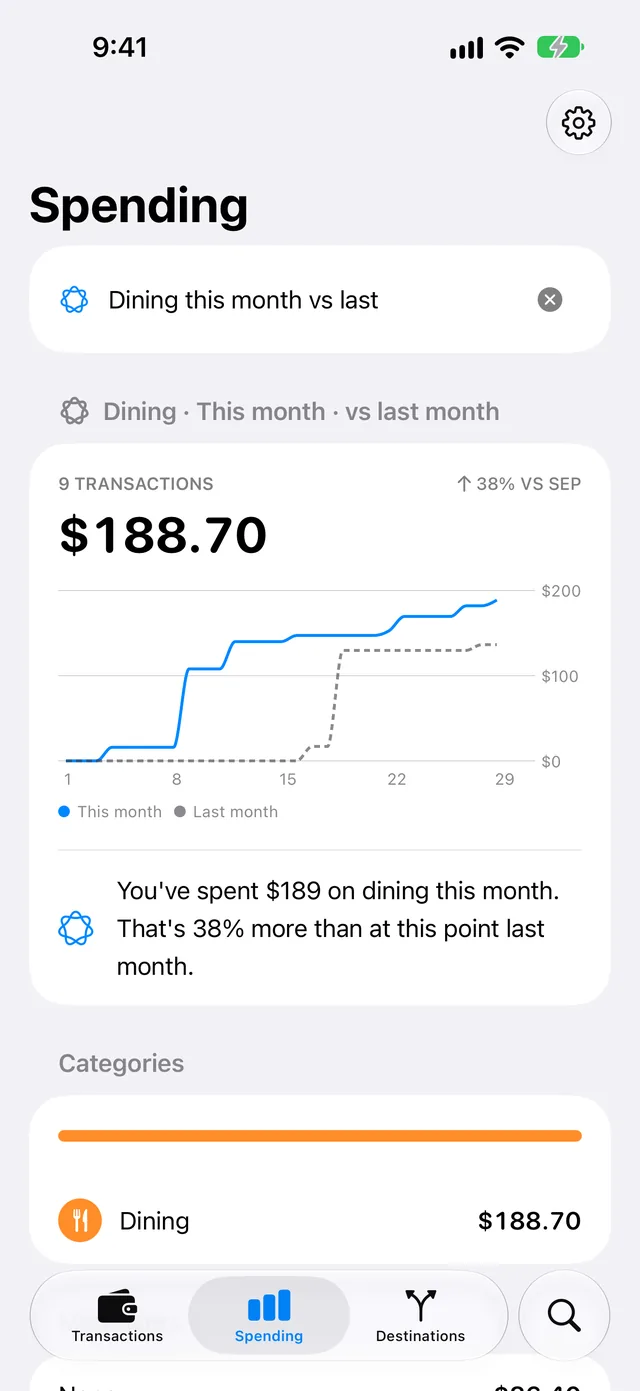
The field shows a progress indicator. Then WalletFeed shows the result below the field.
-
If the chart shows days, weeks or months, put your finger on the chart.
Above the chart, WalletFeed shows the day, week or month and the total at that point.
-
To show the total for a different day, week or month, move your finger on the chart.
Use an example
When no result is on the screen, WalletFeed shows an example below the field. The example starts with "Try". At intervals of 4 seconds, a different example replaces it. WalletFeed shows only the examples that give a result for your transactions from this month and the two months before this month.
-
Tap the example below the field.
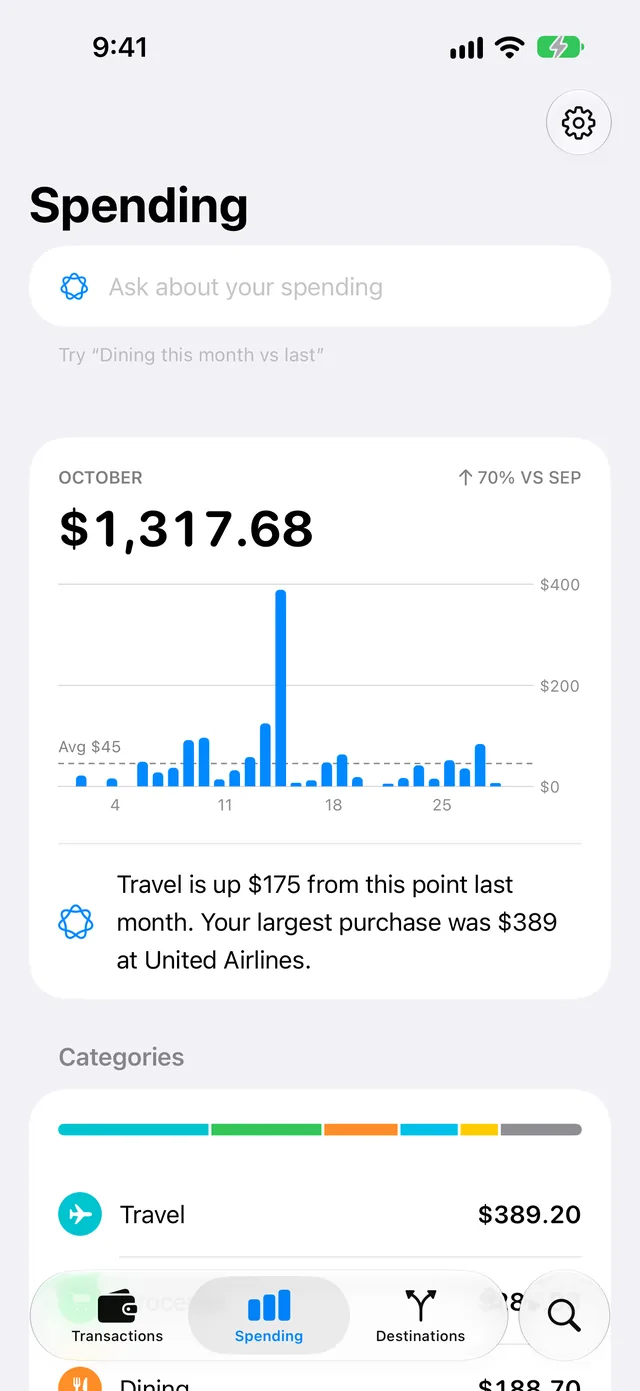
The field then shows the example, and the keyboard opens.
-
To get a different result, change the text in the field.
-
Tap Go on the keyboard.
If you do not change the example, WalletFeed reads it without Apple Intelligence.
Write text that WalletFeed can read
Your text can contain the items in this table. It can also start with how much did I spend.
| Item | Examples |
|---|---|
| A period of time | today, this week, last 30 days, September, last year |
| A period to compare with | vs last month, vs last year |
| A category | dining, groceries, travel |
| A merchant name, or a part of it | coffee |
| A dollar limit for each transaction | over $50, under $20, at least $50 |
| Refunds, money in or recurring charges | refunds, money in, subscriptions |
| A chart type | by day, by week, by category, by merchant, trend, bars |
| The largest transactions first | biggest purchases, largest purchases |
WalletFeed uses these rules for periods:
- If your text has no period of time, WalletFeed uses this month.
last monthis the calendar month before this month, andpast monthis the last 30 days. Weeks and years have the same rule. For example,past yearis the last 12 months.- For a month name, for example
September, WalletFeed uses the September before this month. If this month is September, WalletFeed uses this month. - WalletFeed compares a period only with the previous period, or with the same period of the previous year.
- If the period includes today, WalletFeed uses the other period only to the same day and time. For example, on October 20,
Dining this month vs lastcompares October 1 to 20 with September 1 to 20.
If your text contains one of these items, WalletFeed shows "Couldn't read this." below the field:
- A word that removes transactions, for example
except,notorwithout - Two dollar limits, for example
between $10 and $50 - Two types of transactions, for example
refunds and deposits - Two categories or two merchants to compare, for example
dining vs groceries - A period that WalletFeed cannot use, for example
yesterday,since March,this quarteroron Fridays - Text about balances or budgets.
Read the result
At the top, the result shows the items that WalletFeed found in your text, with the Apple Intelligence icon. An example is "Dining · This month · vs last month".
Below these items, the result shows the number of transactions and their total. If you compare two periods, the result also shows the change, for example "↑ 38% VS SEP". If the other period has a total of zero or less, the result does not show the change.
The chart shows the totals by day, week, month, category or merchant. If you compare two periods by day, week or month, each point is the total from the first day of its period. If your text contains trend or bars, the chart shows the total for each day, week or month.
A summary is below the chart. If the summary has the Apple Intelligence icon, Apple Intelligence wrote it. A summary from Apple Intelligence can contain an incorrect number. A light bulb icon shows that WalletFeed wrote the summary from the facts that it calculates.
The Categories section shows the five largest categories, and Other for the remaining categories. The category totals include refunds. If you add the category totals, you get the total at the top of the result. If the refunds in a category are more than its purchases, the category total has a plus sign (+).
The Merchants section shows the five merchants that have the largest totals. WalletFeed shows this section only if the result has two or more merchants and the chart does not show merchants. For recurring charges, the result does not have this section.
At the bottom, the result shows the transactions in a section for each month, with the newest transaction first. If your text is about the largest transactions, the Largest section shows them, with the largest first.
If your text is about recurring charges, the result shows the Recurring Charges section above Categories. If your text also has no period of time and does not compare two periods, the result shows the number of these charges. In this result, the total is for one month of these charges, and the text "a month" comes after the total.
If WalletFeed finds no transactions for your text, the result shows "0 TRANSACTIONS" and $0.00.
Change the text
When you change the text, WalletFeed removes the result and shows the total and the chart for this month again.
- Tap Clear (the x button) in the field.
- Tap the Ask about your spending field.
- Type the new text.
- Tap Go on the keyboard.
Update the result
WalletFeed reads Wallet each time you open WalletFeed again, and when you swipe down at the top of Spending. Then WalletFeed calculates the result again from the transactions that it reads. Apple Intelligence does not read your text again.
- At the top of Spending, swipe down.
Set Summarize Spending to off
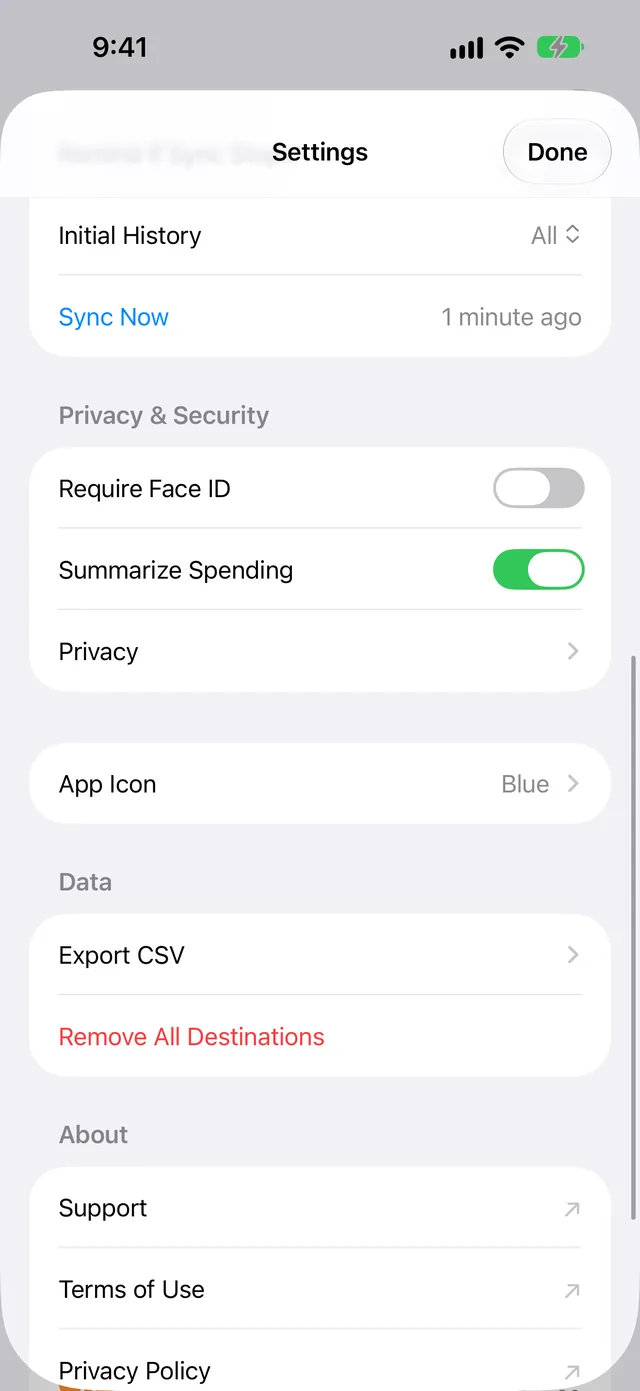
If you set Summarize Spending to off, Apple Intelligence does not write the summary of each result or the Monthly Summary. Thus, WalletFeed shows a light bulb icon and two facts that it calculates. Apple Intelligence continues to read the text that you type.
Settings shows Summarize Spending only when Apple Intelligence is available on your iPhone.
-
At the top of Spending, tap Settings (the gear button).
-
Scroll to Privacy & Security.
-
Set Summarize Spending to off.
-
Tap Done.
Privacy
Apple Intelligence operates on your iPhone. Ask Spending does not send data to a server. To read your text, Apple Intelligence gets only your text. To write a summary, it gets your text and the data that WalletFeed calculates. This data includes your totals, the change between two periods, the categories, the merchants and the largest purchases.
WalletFeed does not keep your text, the results or the summaries. For more information, refer to the WalletFeed privacy policy.
If there is a problem
If WalletFeed shows "Couldn't read this."
WalletFeed cannot get a result from your text. Your text stays in the field, and WalletFeed shows an example below the field.
- Change your text to use the items in Write text that WalletFeed can read.
- Tap Go on the keyboard.
You can also tap the example below the field.
If WalletFeed shows "Couldn't read Wallet. Pull down to try again."
WalletFeed did not get the transactions for the result from Wallet.
-
At the top of Spending, swipe down.
Then WalletFeed reads Wallet and your text again.
If Spending does not show "Ask about your spending"
Spending shows the field only if Apple Intelligence is available on your iPhone. Apple Intelligence is not available on all iPhone models, or in all languages and regions.
- Make sure that your iPhone model is on the list in Get started with the next generation of Apple Intelligence.
- Open the Settings app.
- Tap Apple Intelligence & Siri.
- Set Apple Intelligence to on (or tap Turn on Apple Intelligence).
When Apple Intelligence is available, Spending shows the field.
If the result shows "0 TRANSACTIONS"
WalletFeed read your text. But WalletFeed found no transactions for your text.
- Make sure that the top of the result shows the correct period and category.
- If the period or the category is not correct, change your text.
- Tap Go on the keyboard.
If the summary has an incorrect number
Apple Intelligence writes the summary from the numbers that WalletFeed calculates. WalletFeed does not examine the summary.
- Use the total, the chart and the list, because WalletFeed calculates them.
- To get the summary from WalletFeed, set Summarize Spending to off.
Related
Updated October 30, 2026