 WalletFeed
Select the Wallet accounts that WalletFeed reads
WalletFeed reads the transactions of the Wallet accounts that you select on your iPhone. It can read your Apple Card, Apple Cash and Savings accounts. When you open WalletFeed for the first time, you select the accounts. After this, you change them in the Settings app.
Select your accounts for the first time
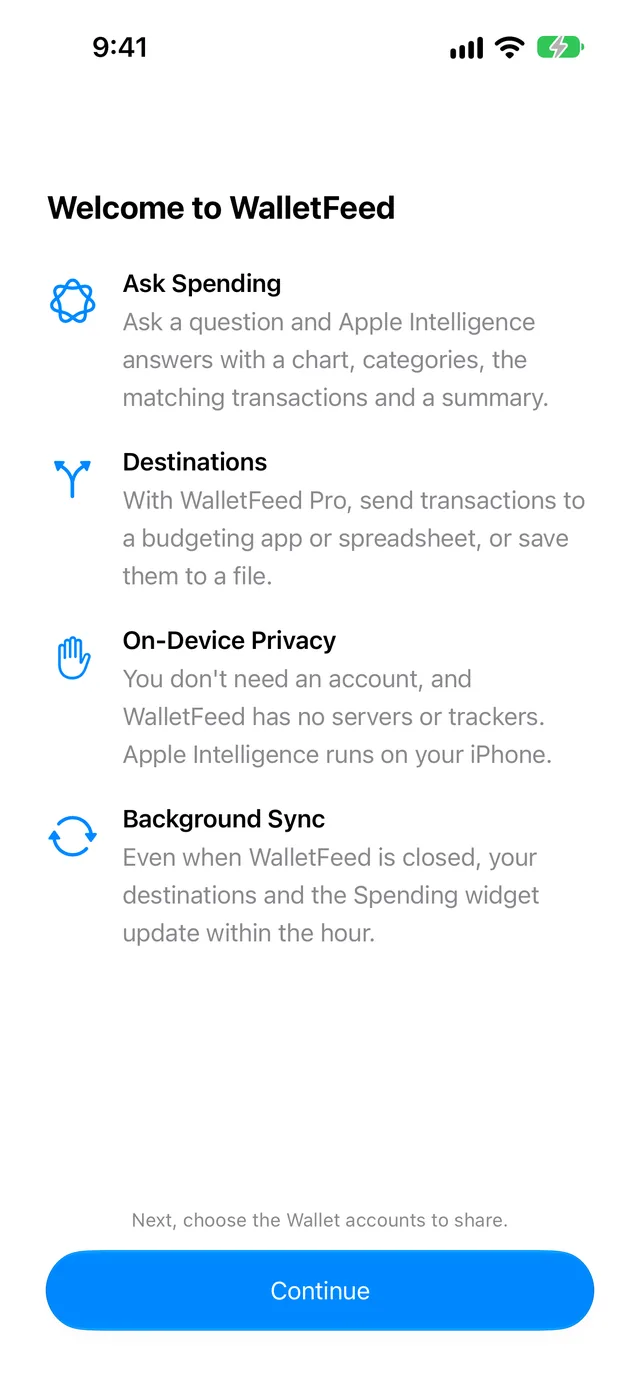
When you open WalletFeed for the first time, it shows Welcome to WalletFeed.
-
Tap Continue.
Transactions opens, and iOS shows the Wallet access screen.
-
Select the accounts that WalletFeed reads.
-
For each account, select the start date.
From this date, WalletFeed can read the transactions of the account.
-
Tap Share.
Transactions shows the transactions of the accounts that you selected.
If you tap Don't Share, WalletFeed cannot read Wallet. Then Transactions shows Wallet Access Off. After this, you select the accounts in the Settings app. The steps are in Change the accounts that WalletFeed reads.
Select the accounts from WalletFeed
Until you tap Share or Don't Share on the Wallet access screen, WalletFeed shows Choose Accounts in Settings › Wallet. In Transactions, Spending and Search, WalletFeed also shows Choose Accounts below No Cards.
-
In WalletFeed, tap Settings (the gear button) at the top of the screen.
-
In the Wallet section, tap Choose Accounts.
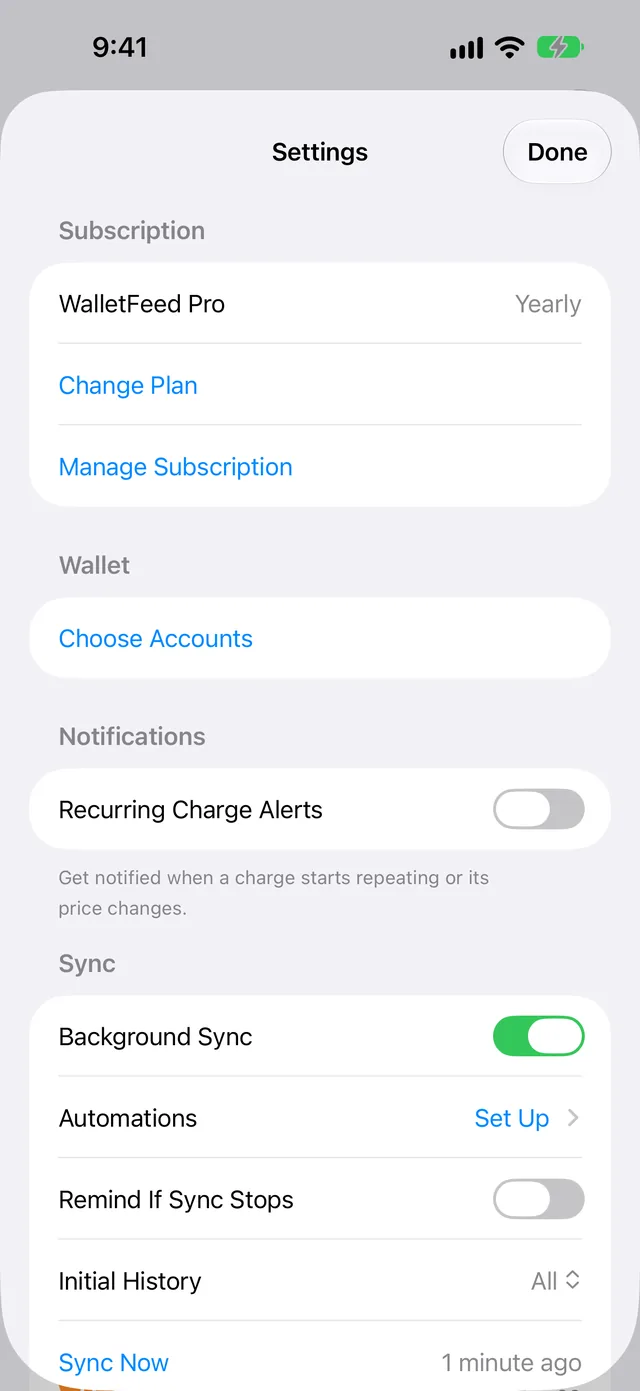
Then, iOS shows the Wallet access screen.
-
Do steps 2 to 4 in Select your accounts for the first time.
Change the accounts that WalletFeed reads
After you tap Share or Don't Share, iOS does not show the Wallet access screen again. You change the accounts and their start dates in the Settings app.
At the end of the Transactions list, a message starts with "Showing transactions from" and gives a date. If you select a start date before this date in step 4, WalletFeed can also read the transactions before this date.
-
On your iPhone, open the Settings app.
-
Tap Privacy & Security › Wallet › WalletFeed.
-
Select the accounts that WalletFeed reads.
-
For each account, select the start date.
-
Open WalletFeed.
When WalletFeed opens, it reads the accounts again.
If you do not select an account in step 3, WalletFeed cannot read the transactions of this account. A destination keeps the transactions that it received before the change.
Accounts and destinations
With WalletFeed Pro, WalletFeed sends transactions to destinations (for example, Lunch Money or Google Sheets). A destination receives the transactions of the accounts that WalletFeed reads.
Before a new destination receives transactions, WalletFeed shows a message. The message tells you which data the destination receives, and which accounts the data is from. The message also gives the start date, or it contains "including earlier ones". After you tap Send, the destination starts to receive transactions. For a CSV, OFX or QIF file, the button is Save.
If you set Filter to on for a destination, you can select the accounts for this destination in Accounts. The steps are in Choose what a destination receives.
Correct problems with Wallet access
If WalletFeed shows Wallet Access Off
WalletFeed cannot read Wallet, because you tapped Don't Share or you stopped its access in the Settings app.
- On your iPhone, open the Settings app.
- Tap Privacy & Security › Wallet › WalletFeed.
- Select the accounts that WalletFeed reads.
- Open WalletFeed.
If WalletFeed shows No Transactions
The accounts that WalletFeed can read have no transactions from their start dates. WalletFeed shows "To share more Wallet accounts, open Settings › Privacy & Security › Wallet."
- Do steps 1 and 2 in Change the accounts that WalletFeed reads.
- Select the accounts that WalletFeed reads.
- If an account has transactions before its start date, select a start date before these transactions.
- Open WalletFeed.
If WalletFeed does not show an account
WalletFeed reads only the Apple Card, Apple Cash and Savings accounts that you selected.
- If the account is an Apple Card, Apple Cash or Savings account, do the steps in Change the accounts that WalletFeed reads.
If WalletFeed shows Wallet Unavailable
WalletFeed cannot get the Wallet data on this iPhone. WalletFeed is for iPhone with iOS 26 or a newer version. It is available only in the US.
Related
Updated October 30, 2026