 WalletFeed
Transactions
The Transactions tab in WalletFeed shows your Apple Card, Apple Cash and Savings transactions on your iPhone. WalletFeed reads the transactions from Wallet and does not keep them.
Open your transactions
-
On your iPhone, open WalletFeed.
-
Tap Transactions at the bottom of the screen.
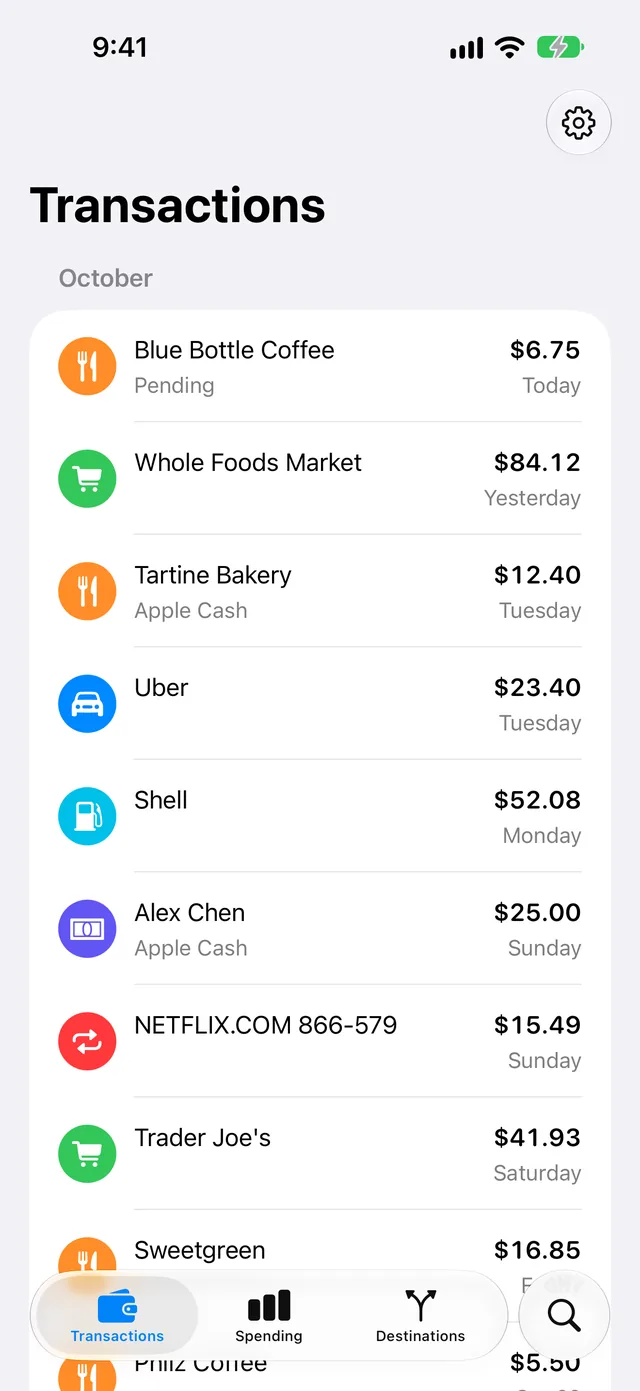
The list has a section for each month. The month of your last transaction is at the top. Each section starts with the last transaction of its month. If a month is before this year, the section also shows the year, for example "September 2025".
Transaction rows
Each row shows these items:
- An icon for the category
- The merchant name
- The amount
- The date.
The icon shows the category, for example a car for Transport. WalletFeed uses the merchant category code (MCC) to find the category.
If Wallet gives no merchant name, the row shows the description of the transaction.
Some rows have a second line below the merchant name. This line shows Pending until the transaction posts. If most transactions in the list are from a different account, this line shows the account name of the transaction. For example, when most transactions are from Apple Card, Apple Cash rows show "Apple Cash".
The amount of a credit, for example a refund, is green and has a plus sign (+).
For a transaction in the last 7 days, the row shows Today, Yesterday or the name of the day, for example "Tuesday". For a date before these 7 days, the row shows the month and the day, for example "Oct 3". If the date is before this year, the row also shows the year.
The row does not show the category name, but VoiceOver speaks it with the other items in the row. Wallet does not give apps the name of the person who used the card. Thus, the row does not show this name.
Apple Card Monthly Installments
If you use Apple Card Monthly Installments, the list shows the charge for each month with your other transactions. Apple adds these charges on the last day of the month. In Spending, the Monthly Installments section also shows the charges from the last month that has installment charges. Wallet does not give apps other installment information, for example the name of the item, the number of installments or the balance.
Show more transactions
WalletFeed reads 200 transactions first. When you scroll to the end of the list, WalletFeed reads 200 more transactions.
-
Scroll to the end of the list.
-
Continue to scroll until WalletFeed shows a message at the end of the list.
The message gives the date of the row at the end of the list, for example "Showing transactions from March 4, 2025."
If Sample Data is on, WalletFeed does not show the message.
For each account, Wallet gives WalletFeed the transactions from a start date. You select this date when you give WalletFeed access to the account.
Change the accounts or the start dates
You select the accounts and their start dates on the Wallet access screen. After you tap Share or Don't Share, iOS does not show this screen again. Then you change the accounts and the start dates in the Settings app.
-
On your iPhone, open the Settings app.
-
Tap Privacy & Security › Wallet › WalletFeed.
-
Select the accounts that WalletFeed reads.
-
To get the transactions before the start date of an account, change the start date.
-
Open WalletFeed.
When WalletFeed opens, it reads Wallet again.
Update the list
WalletFeed reads your transactions again each time you open WalletFeed or the Transactions tab.
-
At the top of the list, swipe down.
Then WalletFeed reads your transactions from Wallet again. If WalletFeed cannot read Wallet, the list does not change.
Find a transaction
-
Tap the search button at the bottom of the screen.
-
Type a part of a merchant name, a category or an amount.
Then Search shows the results in the same rows and month sections as Transactions.
If there is a problem
If WalletFeed shows "No Cards"
You did not select Wallet accounts for WalletFeed.
-
Tap Choose Accounts.
Then iOS shows the Wallet access screen.
-
Select the accounts that WalletFeed reads.
-
For each account, select the start date.
-
Tap Share.
If WalletFeed shows "Wallet Access Off"
You did not let WalletFeed read Wallet, or you stopped its access to Wallet in the Settings app. After you tap Don't Share, iOS does not show the Wallet access screen again.
-
On your iPhone, open the Settings app.
-
Tap Privacy & Security › Wallet › WalletFeed.
-
Select the accounts that WalletFeed reads.
-
Open WalletFeed.
When WalletFeed opens, it reads Wallet again.
If WalletFeed shows "No Transactions"
The accounts that WalletFeed reads have no transactions from their start dates. If WalletFeed cannot read Wallet, it also shows this message.
-
On your iPhone, open the Settings app.
-
Tap Privacy & Security › Wallet › WalletFeed.
-
Select more accounts for WalletFeed.
-
If an account has transactions before its start date, select a start date before these transactions.
-
Open WalletFeed.
When WalletFeed opens, it reads Wallet again.
If WalletFeed shows "Wallet Unavailable"
This iPhone cannot give Wallet data to apps. Thus, WalletFeed cannot show transactions on this iPhone. WalletFeed is for iPhone with iOS 26 or a newer version. It is available only in the US.
If a transaction is not in the list
WalletFeed shows only the Apple Card, Apple Cash and Savings transactions that Wallet gives to WalletFeed.
- At the top of the list, swipe down.
- Scroll until you find the transaction, or until WalletFeed shows a message at the end of the list.
- In the Wallet app, find the account and the date of the transaction.
- If WalletFeed does not read the account, or the date is before the start date, do the steps in Change the accounts or the start dates.
If the list shows transactions that you did not make
If Sample Data is on, WalletFeed shows two months of sample transactions and does not show your Wallet transactions.
- In WalletFeed, tap Settings (the gear button) at the top of the screen.
- In the Data section, set Sample Data to off.
- Tap Done.
If Sample Data is off or not in the Data section, the transactions can be from a co-owner of your Apple Card. The rows do not show the person who used the card.
Related
Updated October 30, 2026