 WalletFeed
Add an Apple Card spending widget
The WalletFeed Spending widget shows the total of your Apple Card and Apple Cash charges for this month on the Home Screen or the Lock Screen of your iPhone. It can also show the total for the month before this month, to the same day and time.
Before you start
You must have these items:
- An iPhone with iOS 26 or a newer version. WalletFeed is available only in the US.
- Your Apple Card, Apple Cash or Savings account in Wallet on your iPhone.
- WalletFeed, from the App Store.
WalletFeed Pro and destinations are not necessary for the widget.
Step 1: Give WalletFeed access to Wallet
The widget shows totals only after WalletFeed gets access to your Wallet accounts and reads your transactions. If WalletFeed shows your transactions, WalletFeed has this access. Then you can go to Step 2. If WalletFeed shows Wallet Access Off, the steps are in If WalletFeed shows “Wallet Access Off”.
-
On your iPhone, open WalletFeed.
-
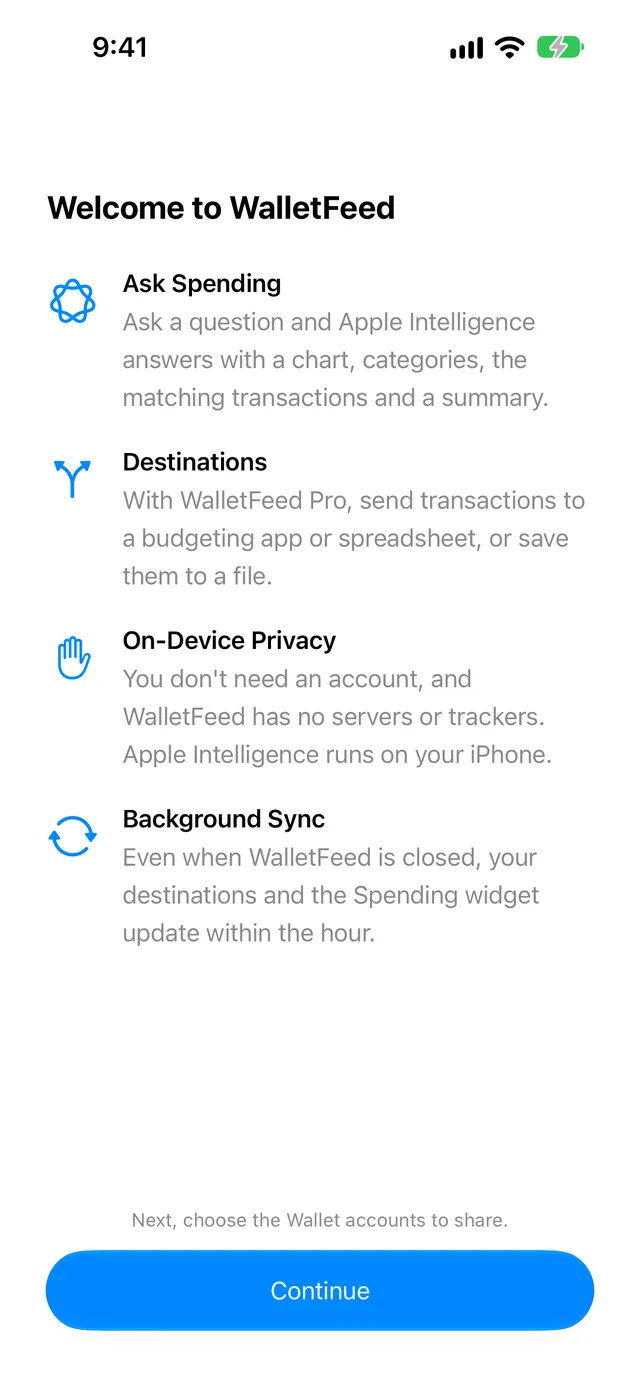
If WalletFeed shows Welcome to WalletFeed, tap Continue.
-
If Transactions shows No Cards, tap Choose Accounts.
-
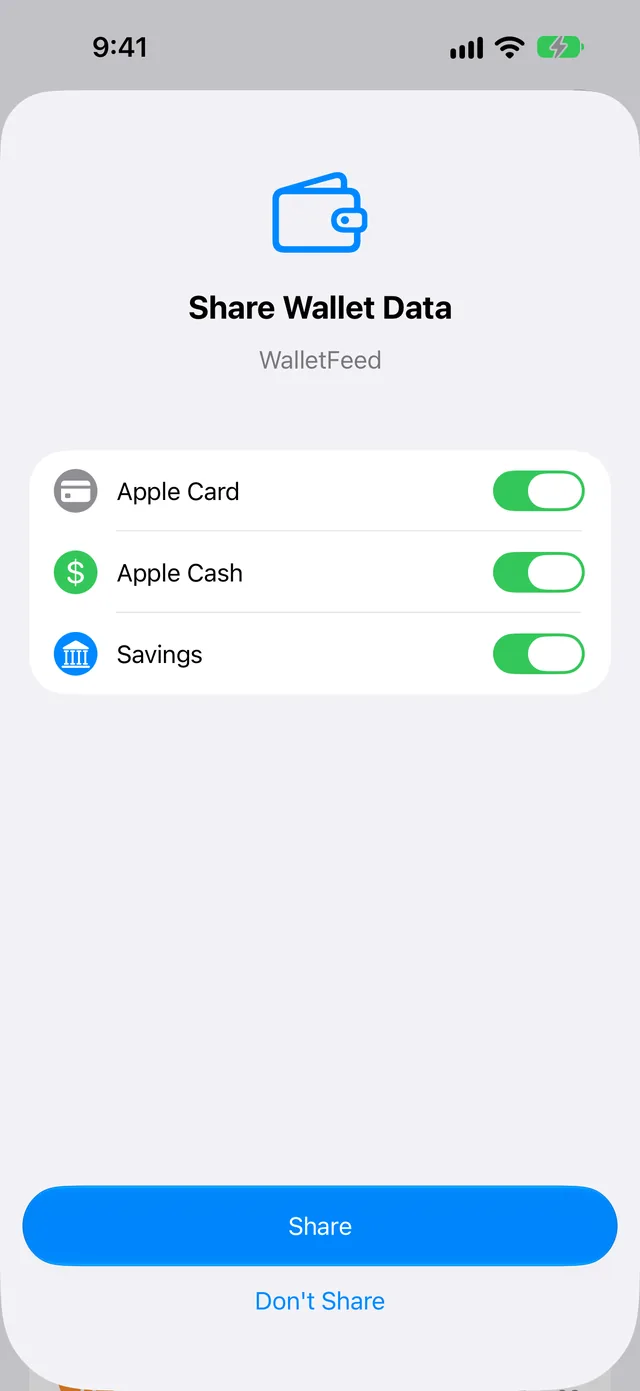
On the Share Wallet Data screen, select the accounts that WalletFeed can read.
-
For each account, select the start date.
-
Tap Share. WalletFeed then reads your transactions and calculates the totals for the widget.
Step 2: Add the widget to the Home Screen
- On your iPhone, go to the Home Screen page where you will put the widget.
- Touch and hold an empty area of the screen until the apps move.
- Tap Edit at the top of the screen.
- Tap Add Widget.
- In the search field, type
WalletFeed. - Tap WalletFeed.
- Swipe to the small or the medium Spending widget.
- Tap Add Widget.
- To move the widget, drag it to a different position.
- Tap Done.
Add the widget to the Lock Screen
On the Lock Screen, the Spending widget can be below the time or above it.
- If your iPhone shows the Home Screen or an app, push the side button.
- If iOS does not show the Lock Screen, push the side button.
- Touch and hold the Lock Screen until iOS shows Customize at the bottom of the screen.
- Tap Customize.
- If iOS shows the Lock Screen and the Home Screen, tap the Lock Screen.
- To put the rectangular widget below the time, tap Add Widgets or the widgets below the time.
- To put the one-line widget above the time, tap the date above the time.
- Tap WalletFeed.
- Tap the Spending widget.
- Tap Done.
Totals in each widget
The Spending widgets show these totals:
| Widget | Position | Totals |
|---|---|---|
| Small | Home Screen | The This Month total, with the Same Point Last Month total below it. |
| Medium | Home Screen | The This Month and Same Point Last Month totals, and the change between the two totals, for example “↓ 14% vs Sep”. |
| Rectangular | Lock Screen, below the time | The total for this month and the change from the Same Point Last Month total. |
| One-line | Lock Screen, above the time | The total for this month, for example “$1,234.56 this month”. |
If the This Month total is less than the Same Point Last Month total, the change has a “↓” arrow. If the Same Point Last Month total is 0 or less than 0, the widget does not show the change.
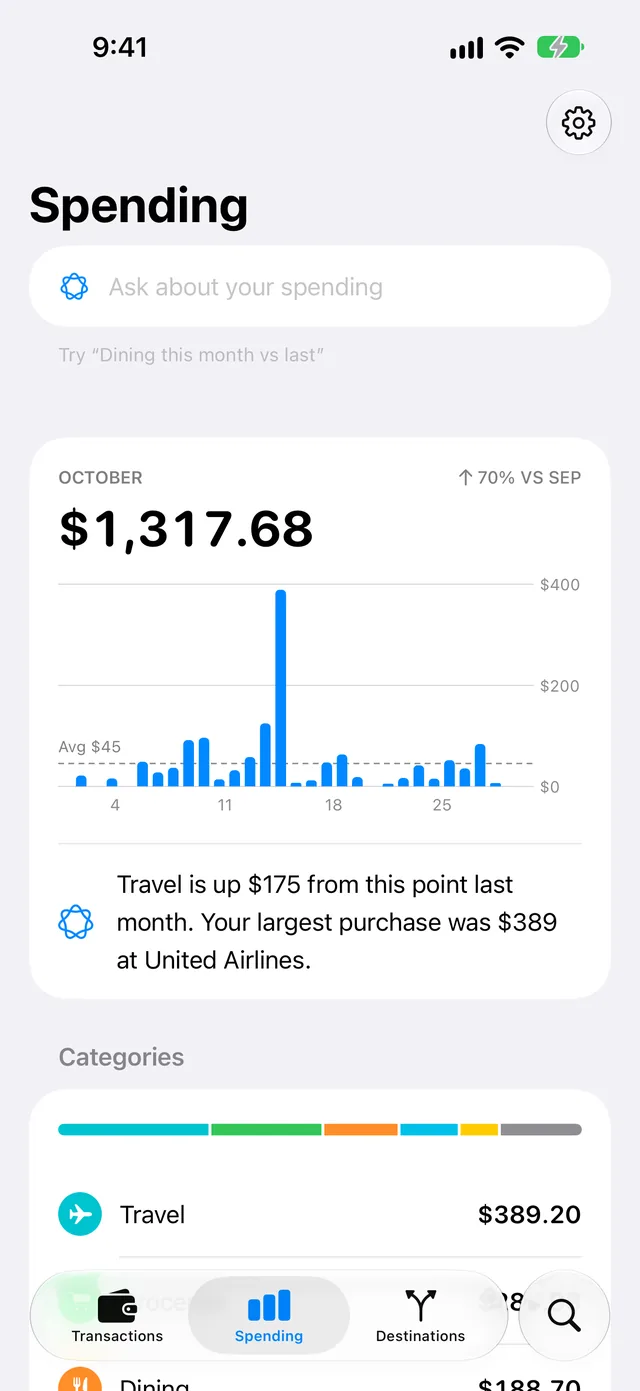
The widget shows the same totals as the Spending tab in WalletFeed. The totals include each account that you gave WalletFeed access to in Step 1. The total for this month starts on the first day of the month. The Same Point Last Month total is from the first day of the month before this month to the same day and time in that month. Purchases and other charges increase the totals, and refunds decrease them. Transfers, payments and rejected purchases do not change the totals.
When a new month starts, the widget shows 0 for this month. Until WalletFeed updates the widget, the widget does not show the Same Point Last Month total or the change.
To look at the same totals in a chart with a bar for each day:
-
Open WalletFeed.
-
Tap Spending.
Widget updates
WalletFeed updates the widget when you open WalletFeed. When WalletFeed is not open, iOS starts WalletFeed approximately 1 hour or less after a change in Wallet. WalletFeed then updates the widget.
WalletFeed Pro and Background Sync are not necessary for these updates.
Data in the widget
For the widget, WalletFeed keeps only two totals on your iPhone, with their currency and the time of the update. The widget has no transactions, merchants or categories. iOS keeps a copy of the data that the widget shows.
On a locked iPhone, iOS can show the widget without the totals and the change.
Change or remove the widget
To change the accounts in the totals:
- On your iPhone, open the Settings app.
- Tap Privacy & Security.
- Tap Wallet.
- Tap WalletFeed.
- Select the accounts that WalletFeed can read.
- Open WalletFeed. WalletFeed then updates the widget.
If you select no accounts in step 5, WalletFeed clears the totals from the widget in step 6.
To remove the widget from the Home Screen:
- Touch and hold the widget.
- Tap Remove Widget.
- If iOS shows a message, tap Remove.
To change the small widget to the medium widget:
- Remove the small widget.
- Add the medium widget, as in Step 2.
To remove the rectangular widget from the Lock Screen:
- If your iPhone shows the Home Screen or an app, push the side button.
- If iOS does not show the Lock Screen, push the side button.
- Touch and hold the Lock Screen until iOS shows Customize at the bottom of the screen.
- Tap Customize.
- If iOS shows the Lock Screen and the Home Screen, tap the Lock Screen.
- Tap the widgets below the time.
- Tap − on the Spending widget.
- Tap Done.
If there is a problem
If the widget shows “Open WalletFeed to see your spending.”
WalletFeed did not read your transactions in Wallet, or WalletFeed does not have access to Wallet. The one-line widget shows only “Open WalletFeed”.
- Open WalletFeed.
- Tap Transactions.
If Transactions shows your transactions, WalletFeed updated the widget when WalletFeed opened. If Transactions shows No Cards, do these steps:
- Tap Choose Accounts.
- On the Share Wallet Data screen, select the accounts that WalletFeed can read.
- For each account, select the start date.
- Tap Share.
If Transactions shows Wallet Access Off, the steps are in If WalletFeed shows “Wallet Access Off”.
If WalletFeed shows “Wallet Access Off”
WalletFeed does not have access to Wallet. After you tap Share or Don't Share, iOS does not show the Share Wallet Data screen again.
- On your iPhone, open the Settings app.
- Tap Privacy & Security.
- Tap Wallet.
- Tap WalletFeed.
- Select the accounts that WalletFeed can read.
- Open WalletFeed. WalletFeed then updates the widget.
If the widget does not show a new purchase
WalletFeed did not update the widget after the purchase. When WalletFeed is not open, iOS starts WalletFeed approximately 1 hour or less after a change in Wallet.
- Open WalletFeed. WalletFeed then updates the widget.
- Go to the Home Screen.
If the widget shows totals that are not from your accounts
The widget shows the totals of the sample transactions because Sample Data is on.
- Open WalletFeed.
- Tap Settings (the gear button) at the top of the screen.
- In the Data section, set Sample Data to off. WalletFeed then clears the sample totals and calculates your totals from Wallet.
Related
Updated October 30, 2026