 WalletFeed
Send previous transactions
A WalletFeed destination can receive your previous Apple Card, Apple Cash and Savings transactions. In WalletFeed, Initial History sets the start date of each new destination. Send History sends previous transactions to one of your destinations.
Destinations and Send History are part of WalletFeed Pro. WalletFeed Pro is a subscription with a 1-week free trial, or a one-time Lifetime purchase. If you do not have WalletFeed Pro, Send History opens the WalletFeed Pro screen.
Set the start date for new destinations
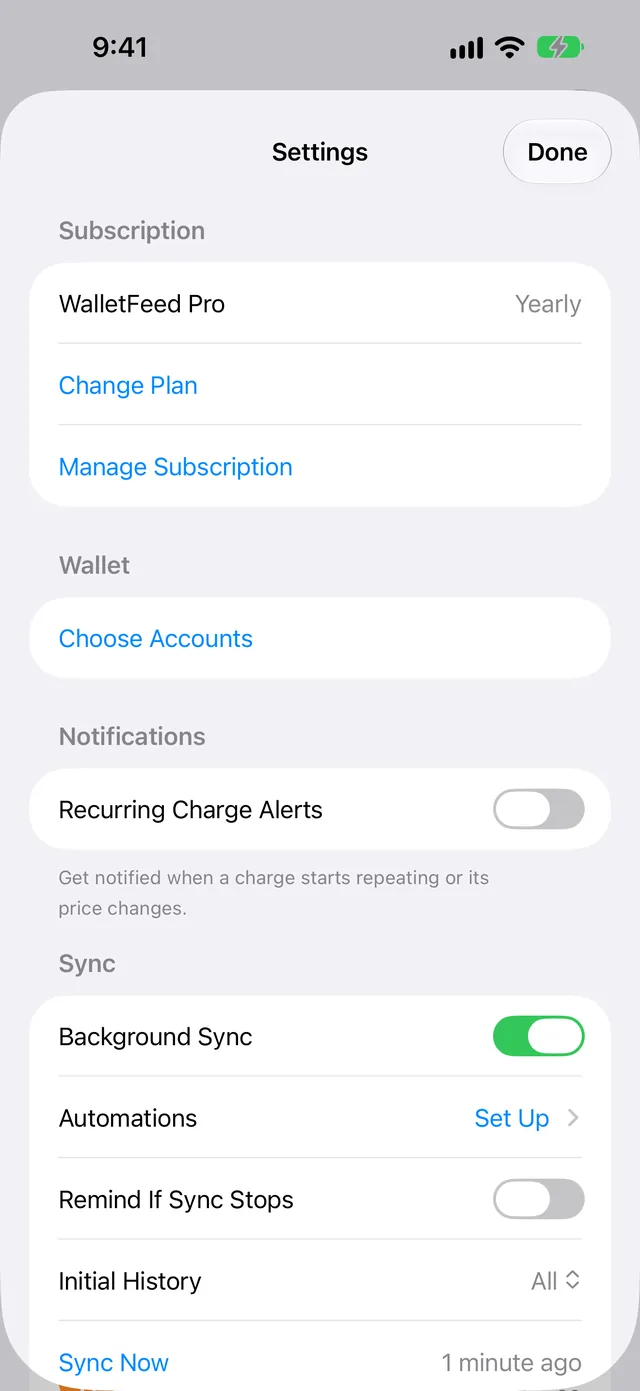
A new destination receives your transactions from the date that Initial History sets. Initial History is All until you change it. If you change Initial History, only the destinations that you add after the change use the new period.
WalletFeed shows the Sync section only if you have WalletFeed Pro.
-
In WalletFeed, tap Settings (the gear button) at the top of the screen.
-
In the Sync section, tap Initial History.
-
Select a period.
-
Tap Done.
These are the periods of Initial History:
| Period | A new destination receives |
|---|---|
| Today | The transactions from the day that you add the destination. |
| 30 Days | The transactions from the last 30 days. |
| 90 Days | The transactions from the last 90 days. |
| 1 Year | The transactions from the last 12 months. |
| All | All the transactions that WalletFeed can read. |
Each transaction starts a Zap in Zapier, uses a credit in Make and becomes an issue in Linear. Thus, a new Zapier, Make or Linear destination receives a maximum of 30 days of previous transactions. Send History can send previous transactions to these destinations.
WalletFeed can read only the Wallet accounts and the period that you select in iOS. You can change them in the Settings app, in Privacy & Security › Wallet › WalletFeed.
Send to a new destination
Before a new destination receives transactions, WalletFeed shows a message. The message tells you the data that the destination will receive, the Wallet accounts and the start date.
-
To add the destination, do the steps in Add a destination.
-
Read the message, for example Send Transactions to Lunch Money?
If Initial History is All, the message shows "including earlier ones" and no date. For Zapier, Make and Linear, the message shows the start date.
For a CSV, OFX or QIF file, the title of the message is Save Transactions to Files?, and the button is Save.
-
Tap Send or Save.
WalletFeed then sends your transactions to the destination. It sends the newest transactions first.
If you tap Cancel, WalletFeed removes the new destination and does not send transactions to it.
Send previous transactions to a destination
You can also send the transactions of a period to a destination that you added, for example after you change its filter.
-
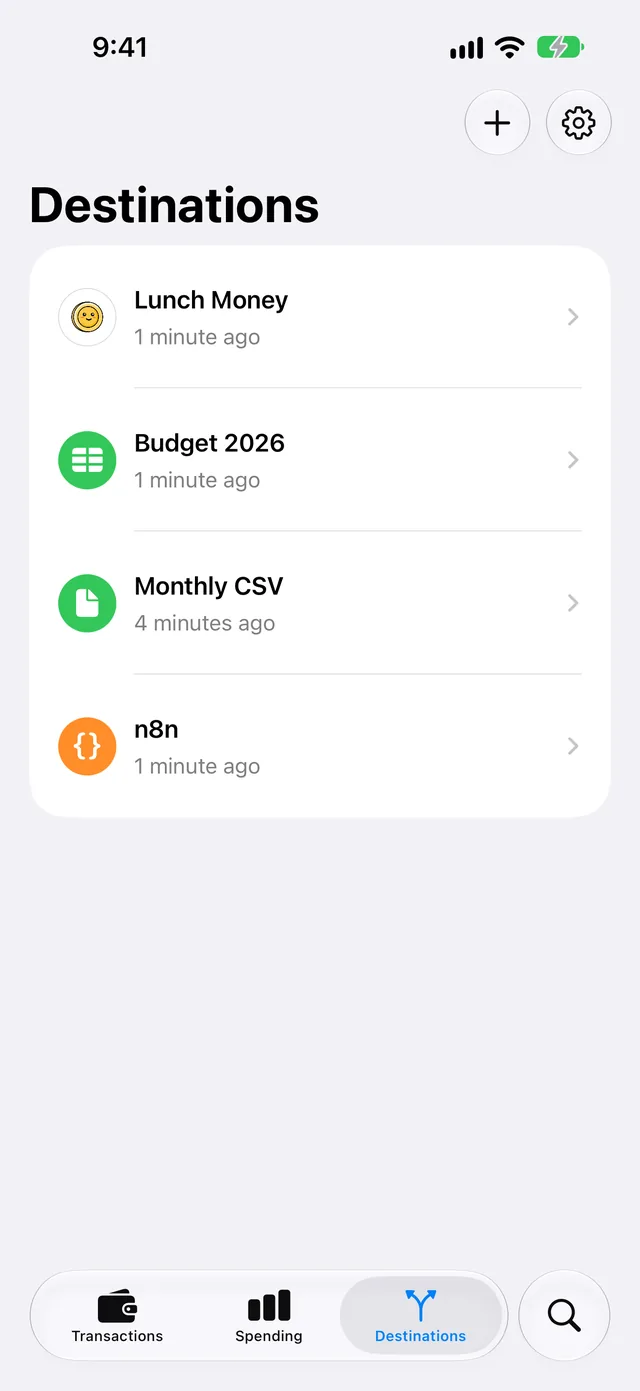
In WalletFeed, tap Destinations at the bottom of the screen.
-
Tap the destination.
-
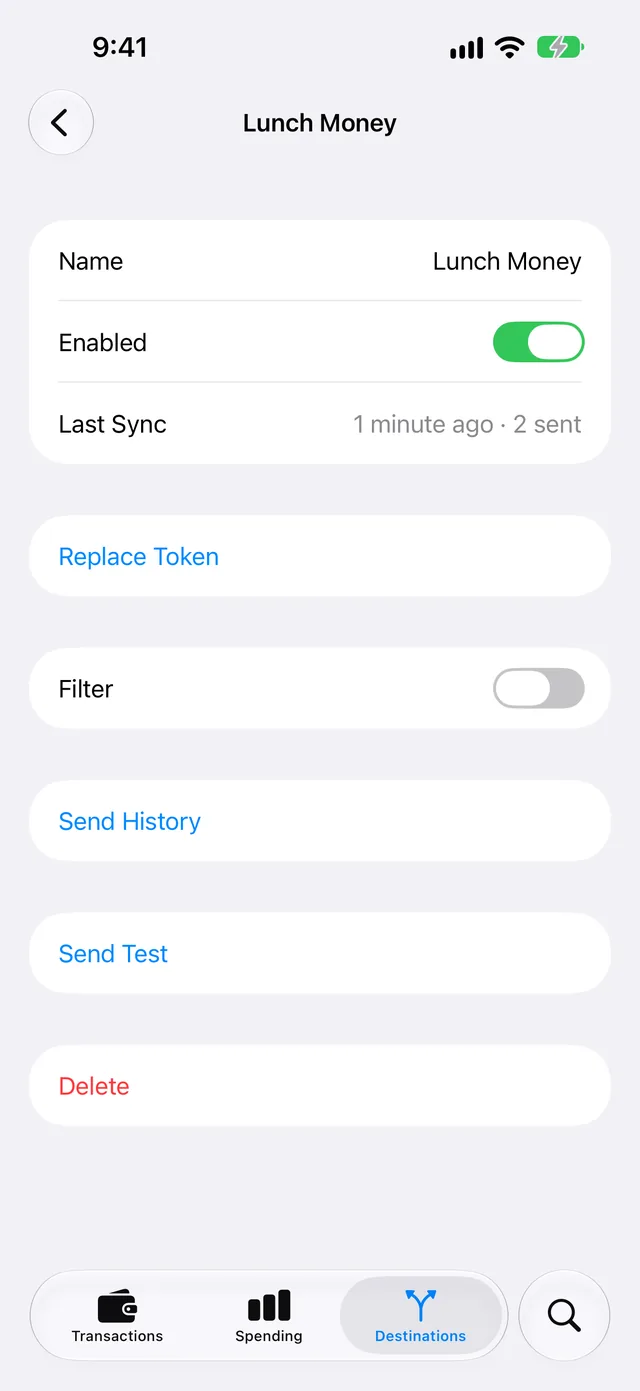
Tap Send History.
-
Select 30 Days, 90 Days, 1 Year or All.
-
If WalletFeed shows a message, for example Send History to Zapier?, tap Send.
This message is only for Zapier, Make and Linear. The message tells you the result in the service:
- "Each transaction runs your Zap."
- "Each transaction runs your scenario."
- "Each transaction can become an issue."
On the Linear Free plan, a workspace can have no more than 250 issues.
WalletFeed then starts to send the history. Above Send History, the destination screen shows Sending History and a progress bar.
WalletFeed sends all the transactions of the period, and it starts with the newest transactions. It uses the filter of the destination and does not send declined transactions.
The first day of the period also becomes the start date of the destination. Then, WalletFeed sends changes only for the transactions from that date.
If a new transaction occurs while WalletFeed sends the history, WalletFeed sends the new transaction first.
If a Webhook, Zapier, Make, Amazon SQS, Kinesis Data Streams or EventBridge destination has a transaction, it receives a second copy. Other destinations keep one copy of each transaction.
Monitor the history
While WalletFeed sends the history, the destination screen shows Sending History above Send History. The screen also shows numbers and a month, for example "2,340 of 5,120 · back to March 2023":
- The first number is the number of transactions that WalletFeed sent. This number also includes the transactions that the destination had and the transactions that the filter does not include.
- The second number is the number of transactions in the period.
- The month tells you that WalletFeed sent all the transactions after a date in that month.
The progress bar shows less than 100% until WalletFeed completes the history. In Destinations, the row of the destination shows "Sending history · 46%". When WalletFeed waits or cannot continue the history, the row shows "History paused · 46%".
The destination screen shows one of these items above Send History:
| Item | Information |
|---|---|
| Sending History and numbers | WalletFeed sends the history. |
| "Paused" | WalletFeed does not send the history at this time. For example, Enabled is off, or you do not have WalletFeed Pro. |
| "Too many requests.", "Can't connect." or "Server error (502).", then "Trying again in 10 min." | The service has a problem or a limit, or WalletFeed cannot connect to it. WalletFeed tries again at the time that the message shows. |
| An orange exclamation mark, a message and Try Again | WalletFeed cannot continue until you correct a problem. The steps are in Correct a problem with the history. |
| History with "All sent" | WalletFeed sent all the transactions. |
| History with "Sent from March 3, 2023" | WalletFeed sent all the transactions from that date. |
| History with "Stopped" | You tapped Stop Sending. |
History in the background
While WalletFeed is open, it sends the history. When you go to a different app, iOS can let WalletFeed continue in the background. This can occur after you select a period in Send History, or after you tap Send or Save for a new destination.
iOS then shows a Live Activity, for example "Sending history to Lunch Money" with "2,340 of 5,120". If you tap Cancel in the Live Activity, or if you close WalletFeed in the app switcher, WalletFeed stops the history for a time. WalletFeed continues the history when you open WalletFeed again, or when iOS starts WalletFeed in the background. The procedure to stop the history is in Stop the history.
iOS can also let WalletFeed send the history while your iPhone charges and you do not use it. For short periods, iOS can start WalletFeed to send the history.
WalletFeed sends the history to each service at a speed that the service accepts. Thus, if a slow service receives a large history, the history can continue for some days.
Stop the history
WalletFeed shows Stop Sending only until it completes the history.
-
In Destinations, tap the destination.
-
Tap Send History.
-
Tap Stop Sending.
History shows "Stopped".
The destination keeps the transactions that it received. WalletFeed continues to send new transactions to the destination.
To send the history again, select a period in Send History.
Send previous transactions after a filter change
A change to the filter of a destination changes only the transactions that WalletFeed sends after the change.
If the new filter includes more transactions, WalletFeed does not send the previous transactions that the new filter adds. If the new filter does not include some transactions, the destination keeps the transactions that it received before the change.
To send the previous transactions with the new filter, do the steps in Send previous transactions to a destination.
Correct a problem with the history
If the history shows "Authentication failed"
The service did not accept the key, token or sign-in of the destination, or the permissions of the key changed.
- If the message includes "Replace the key.", make a new key in the service. For the steps, refer to the guide for the destination type.
- In WalletFeed, replace the key of the destination, or connect the destination again. For the steps, refer to Replace a key or connect again.
- On the destination screen, tap Try Again.
WalletFeed also tries again after approximately 1 hour, and then after longer periods of no more than 24 hours. When the service accepts a new transaction from WalletFeed, the history also continues.
If the history shows "Can't open the folder. Choose it again."
WalletFeed cannot open the folder of the CSV, OFX or QIF file.
-
In Destinations, tap the destination.
-
Tap Change Folder.
-
Select the folder.
The history starts again, and WalletFeed writes the transactions to that folder.
If the history shows "Check the destination, then try again."
The service rejected the transactions. The message starts with the cause, for example "Rejected (HTTP 404)".
These are some problems that can stop the history:
- On the Airtable Free plan, a base can have no more than 1,000 records.
- If a Make scenario is not active, Make keeps the transactions in a queue. On the Make Free plan, the queue can have no more than 50 items.
- If a Zap is off, Zapier rejects the transactions. Zapier can start to reject them some hours after you set the Zap to off.
- Correct the problem in the service.
- On your iPhone, open WalletFeed.
- In Destinations, tap the destination.
- Tap Try Again.
WalletFeed also tries again after approximately 1 hour, and then after longer periods of no more than 24 hours.
If the history shows "Paused"
WalletFeed does not send the history at this time, for example because Enabled is off or you do not have WalletFeed Pro.
-
In Destinations, tap the destination.
-
Make sure that Enabled is on.
-
Make sure that you have WalletFeed Pro. In Settings, the Subscription section shows your plan.
-
Keep WalletFeed open.
When WalletFeed continues the history, numbers replace "Paused".
Related
Updated October 30, 2026