 WalletFeed
Find subscriptions on your Apple Card
WalletFeed finds the subscriptions and other recurring charges on your Apple Card and shows them on its Spending screen. It can also send you a notification when a charge becomes a recurring charge or when its price changes.
Before you start
You must have these items:
- An iPhone with iOS 26 or a newer version. WalletFeed is available only in the US.
- WalletFeed on your iPhone, with access to your Wallet accounts. These accounts are Apple Card, Apple Cash and Savings.
- Two or more charges from one merchant in Wallet. For a charge that occurs each week, three charges are necessary.
- For short names and for Ask Spending, an iPhone that can use Apple Intelligence, with Apple Intelligence on.
WalletFeed Pro is not necessary for Recurring Charges or for Recurring Charge Alerts.
Step 1: Open Recurring Charges
-
On your iPhone, open WalletFeed.
-
Tap Spending.
-
Scroll to Recurring Charges.
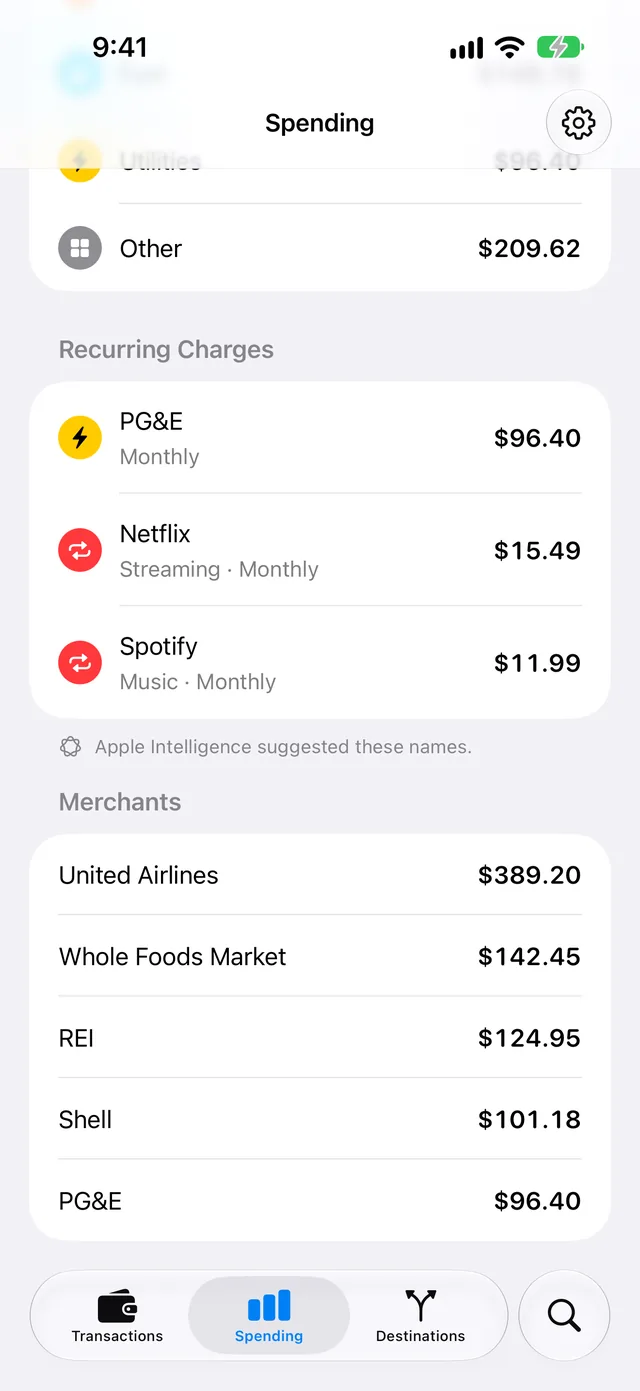
Each row shows a name, the price of the last charge, and Monthly or Weekly. With Apple Intelligence, the row can also show the type of service, for example Streaming · Monthly.
The list starts with the charge that has the highest price for one month. If WalletFeed finds no recurring charges, the Spending screen does not show the Recurring Charges section. For more information, refer to Recurring Charges.
Step 2: Get the total price for one month
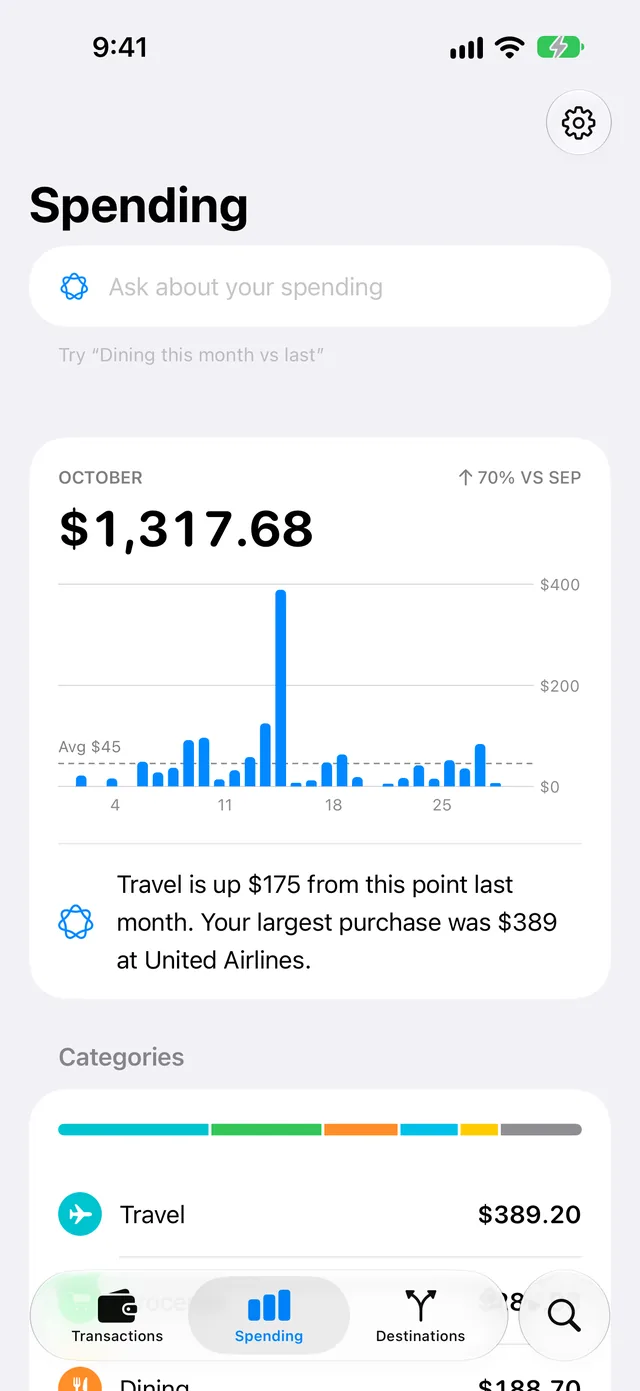
Ask Spending calculates the total price of your recurring charges for one month. For this step, Apple Intelligence must be on. Without Apple Intelligence, the Spending screen does not show Ask about your spending. To set Apple Intelligence to on, refer to Ask Spending.
-
On the Spending screen, tap Ask about your spending.
-
Type
Subscriptions I pay for. -
Tap Go on the keyboard.
Ask Spending shows the number of recurring charges and their total price for one month. Below the chart, Recurring Charges shows the price of each charge for one month.
-
To show the usual Spending screen again, tap Clear (the x button) in the field.
For a charge that occurs each week, WalletFeed multiplies the price by approximately 4.3 to get the price for one month. The total price includes charges that are not subscriptions, for example a charge for electricity each month.
If you also type a period of time, for example last month, Ask Spending shows the total price of your recurring charges in that period.
Step 3: Get a notification when a charge starts or changes
-
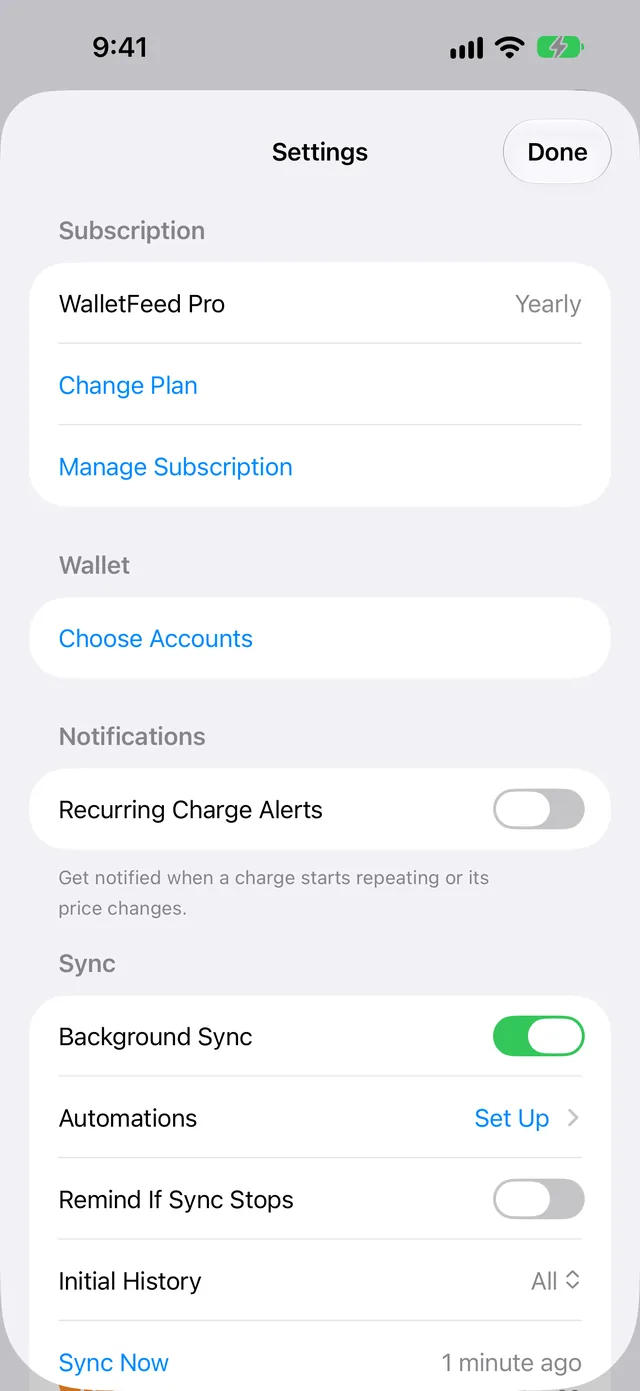
Tap Settings (the gear button) at the top of the screen.
-
In the Notifications section, set Recurring Charge Alerts to on.
-
If iOS shows a message about notifications, tap Allow.
-
Tap Done.
When a charge becomes a recurring charge, the notification shows, for example, “Netflix repeats monthly” and “$15.49 each month”.
If the price of a recurring charge changes by more than 2%, the notification shows, for example, “Netflix costs more” and “$17.99, up from $15.49”.
WalletFeed sends notifications only for charges from the last 7 days. For each charge, it sends only one notification. It does not send notifications for the charges that were in Wallet before you set Recurring Charge Alerts to on.
When you open WalletFeed, it examines your transactions and sends the new notifications. When WalletFeed is not open, iOS starts WalletFeed approximately 1 hour or less after a change in Wallet.
Conditions for a recurring charge
WalletFeed examines your transactions from this month and from the two months before it. It shows the charges from a merchant in Recurring Charges when the charges agree with these conditions:
- All the charges have the same merchant name. For example, “Netflix.com” and “NETFLIX.COM” are the same merchant name.
- The difference between the price of each charge and the price of the last charge is 15% or less.
- For Monthly, there are two or more charges, and each charge is 26 to 35 days after the charge before it.
- For Weekly, there are three or more charges, and each charge is 6 to 8 days after the charge before it.
Recurring Charges does not show these transactions:
- Apple Card Monthly Installments (the Monthly Installments section on the Spending screen shows them)
- Refunds, transfers, bill payments and rejected transactions
- Charges that occur each year.
Names from Apple Intelligence
With Apple Intelligence, WalletFeed shows a short name and a type of service. For example, for the merchant name “NETFLIX.COM 866-579” from Wallet, WalletFeed shows Netflix and Streaming. If the first word of the name from Apple Intelligence is not in the merchant name, WalletFeed does not use that name. WalletFeed gets names only for the first 12 charges in the list. Below the list, Recurring Charges shows Apple Intelligence suggested these names.
Apple Intelligence gets only the merchant names. It operates on your iPhone. WalletFeed does not send data to a server for these names.
Without Apple Intelligence, each row shows the merchant name from Wallet, and Monthly or Weekly.
Stop the notifications
- In WalletFeed, tap Settings (the gear button) at the top of the screen.
- In the Notifications section, set Recurring Charge Alerts to off.
- Tap Done.
A notification shows the name of the charge and the prices. When notification previews are off, iOS does not show the text of the notification on the Lock Screen.
If there is a problem
If Spending shows “No Cards”
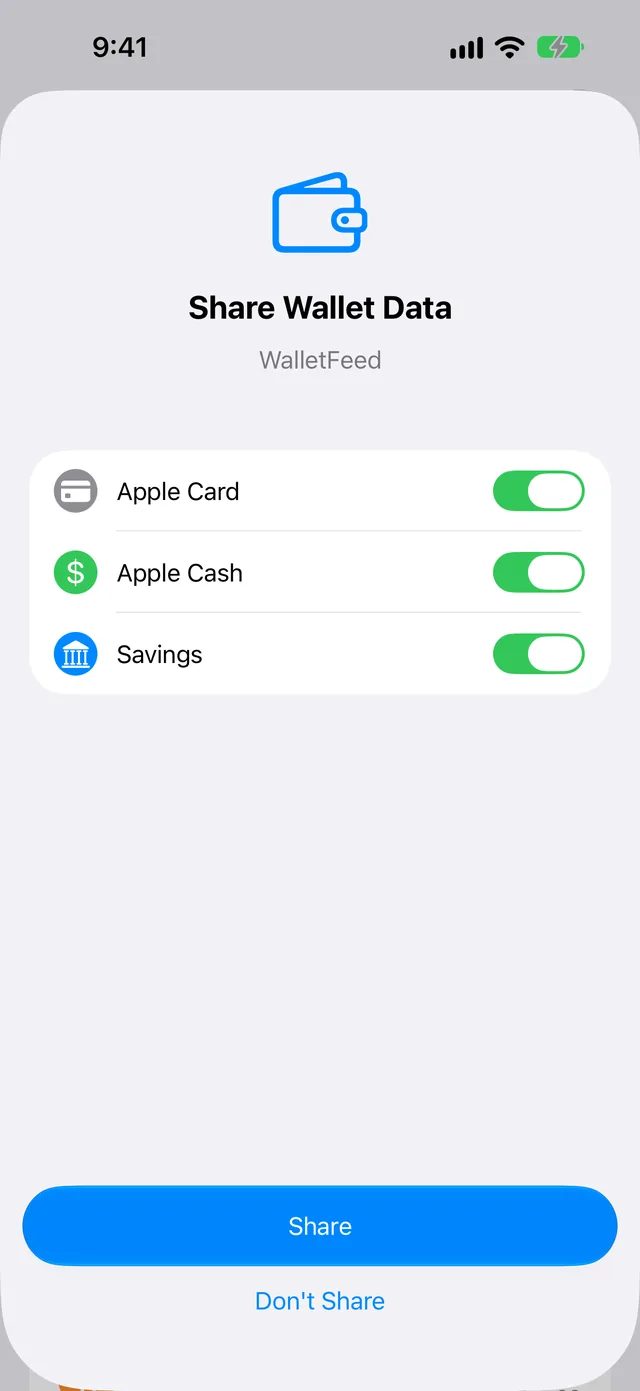
WalletFeed does not have access to your Wallet accounts.
-
Tap Choose Accounts.
-
Set Apple Card to on.
-
Tap Share.
If WalletFeed shows Wallet Access Off, refer to Wallet accounts.
If Spending shows “Couldn't Read Wallet”
WalletFeed did not get your transactions from Wallet.
- To try again, swipe down on the Spending screen.
If a new subscription is not in Recurring Charges
WalletFeed shows a charge that occurs each month only after the second charge from the merchant. It shows a charge that occurs each week only after the third charge.
- When Wallet shows a new charge from the merchant, open Spending again.
If a subscription with a new price is not in Recurring Charges
If the price changes by more than 15%, WalletFeed does not show the charge. WalletFeed shows the charge again when all the charges from the merchant in this month and the two months before it have the new price.
Recurring Charge Alerts can send a notification when the price changes by more than 15%. To get these notifications:
- In WalletFeed, tap Settings (the gear button) at the top of the screen.
- In the Notifications section, set Recurring Charge Alerts to on.
If a subscription with a charge each year is not in Recurring Charges
WalletFeed finds only charges that occur each month or each week.
To find the charges from the merchant:
- Tap Search at the bottom of the screen.
- Type the name of the merchant.
If a charge shows the merchant name from Wallet
The cause is one of these:
- Apple Intelligence is not active.
- Apple Intelligence gave no name that agrees with the merchant name.
- The charge is not in the first 12 charges of the list.
If Apple Intelligence is not active, do these steps:
-
Make sure that your iPhone can use Apple Intelligence.
Apple gives the list of iPhone models in Get started with the next generation of Apple Intelligence.
-
On your iPhone, open the Settings app.
-
Tap Apple Intelligence & Siri.
-
Set Apple Intelligence to on.
-
In WalletFeed, open Spending again.
If Recurring Charge Alerts does not stay on
iOS does not let WalletFeed send notifications.
- On your iPhone, open the Settings app.
- Tap Notifications › WalletFeed.
- Set Allow Notifications to on.
- Open WalletFeed.
- Tap Settings (the gear button) at the top of the screen.
- In the Notifications section, set Recurring Charge Alerts to on.
If you do not get a notification
WalletFeed sends a notification only when a charge becomes a recurring charge, or when its price changes by more than 2%. It sends notifications only for charges from the last 7 days.
- Open WalletFeed.
- Tap Settings (the gear button) at the top of the screen.
- Make sure that Recurring Charge Alerts is on.
Related
Updated October 30, 2026