 WalletFeed
First steps with WalletFeed
WalletFeed shows the transactions from your Apple Card, Apple Cash and Savings accounts on your iPhone. To start, you open WalletFeed and select the Wallet accounts that it can read.
Before you start
WalletFeed is available only in the US. You must have these items:
- An iPhone with iOS 26 or a newer version
- An Apple Card, Apple Cash or Savings account in Wallet on the iPhone
- WalletFeed on the iPhone (from the App Store).
If you do not have an Apple Card, Apple Cash or Savings account, refer to Use WalletFeed with sample transactions.
Open WalletFeed for the first time
-
On your iPhone, open WalletFeed.
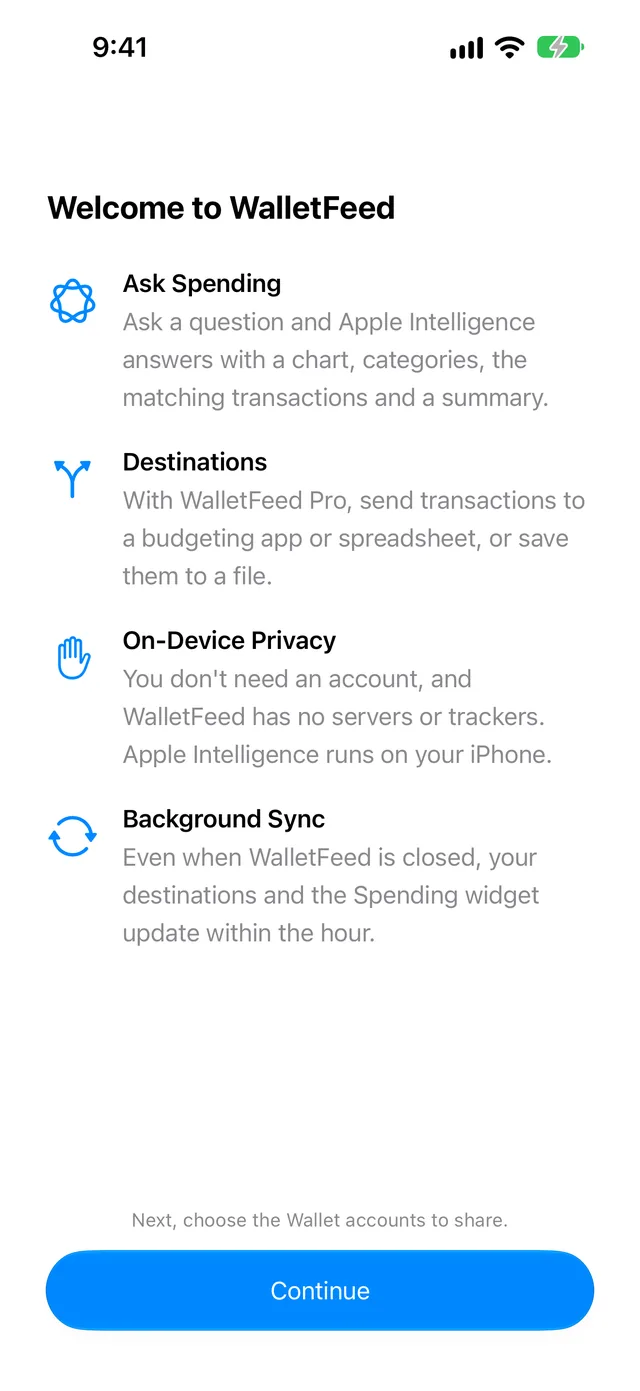
The Welcome to WalletFeed screen opens. This screen tells you about Ask Spending, Destinations, On-Device Privacy and Background Sync. If Apple Intelligence is not available on your iPhone, the first item is Spending and Search.
-
Tap Continue.
Transactions opens, and iOS shows a message with the buttons Don't Allow and Select Accounts.
Select the Wallet accounts for WalletFeed
After you give WalletFeed access to your accounts or tap Don't Allow, iOS does not show the message with Select Accounts again. Then you can change the accounts for WalletFeed only in the Settings app.
-
Tap Select Accounts.
The list of Wallet accounts opens.
-
Select the accounts for WalletFeed (for example, your Apple Card).
You can also select a start date for each account. WalletFeed can read only the transactions that occur on or after that date.
-
Tap the Share with button.
Transactions shows the transactions from the accounts that you selected.
If you tap Don't Allow, Transactions shows Wallet Access Off. To let WalletFeed read Wallet after that, refer to If Transactions shows "Wallet Access Off".
If you tap Cancel in the list of Wallet accounts, Transactions shows No Cards. To select the accounts again, refer to If Transactions shows "No Cards".
Look at your transactions
Transactions shows your transactions below the name of each month. The newest transactions are at the top.
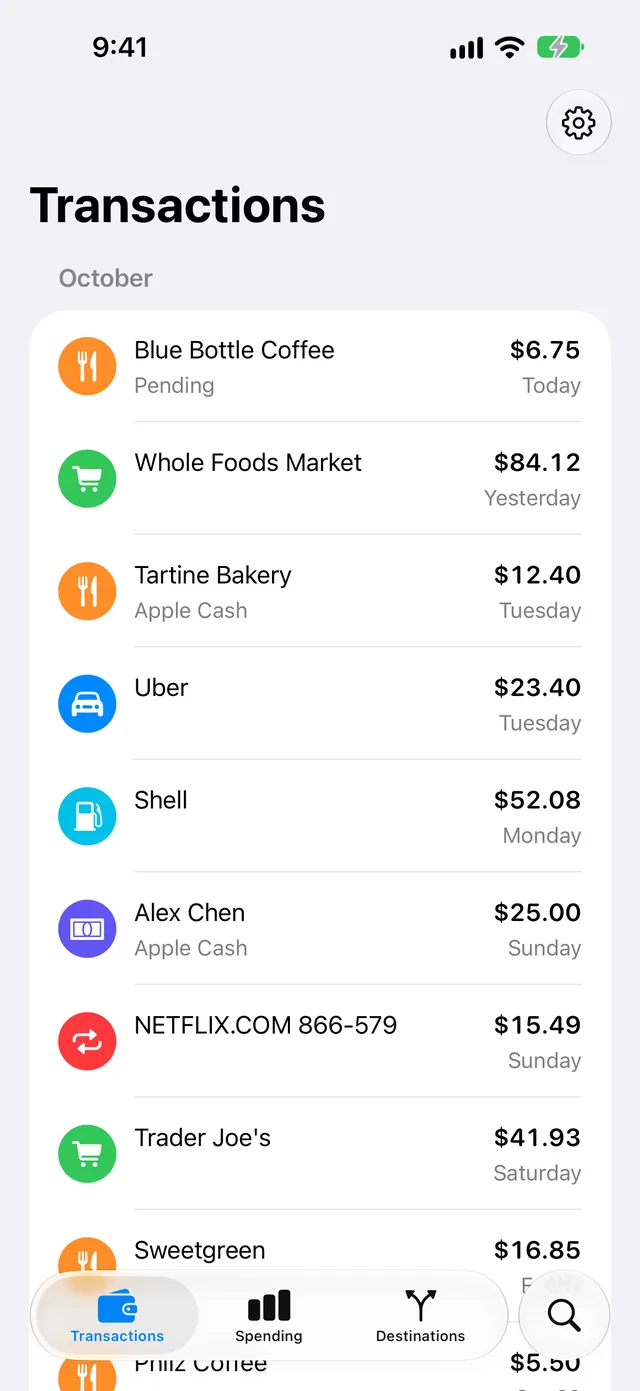
Each row shows the merchant and the amount. The day is below the amount. Below the merchant, a row can also show "Pending". If a transaction is not from the account that has the most transactions, its row also shows the account name (for example, Apple Cash).
At the end of the list, WalletFeed shows the date of the first transaction that it can read. To let WalletFeed read the transactions from before that date, refer to Change the accounts that WalletFeed reads.
Use the other tabs
The tabs and the search button at the bottom of the screen open the other parts of WalletFeed:
- The Spending tab shows the total amount of your purchases this month, for each day, category and merchant.
- The Destinations tab shows the destinations that receive your transactions from WalletFeed (for example, a budget app or a spreadsheet).
- The search button opens Search. Search finds the transactions that have the merchant or the amount that you type.
You can use Spending, Ask Spending, Search, Recurring Charges, the Spending widget and CSV export without WalletFeed Pro. To send transactions to a destination, you must have WalletFeed Pro. WalletFeed Pro is a subscription with a 1-week free trial, or a one-time Lifetime purchase.
Use WalletFeed with sample transactions
If you do not have an Apple Card, Apple Cash or Savings account, you can use WalletFeed with sample transactions. WalletFeed shows Sample Data in Settings only if you have no destinations or if Sample Data is on.
-
In WalletFeed, tap Settings (the gear button) at the top of the screen.
-
Scroll to the Data section.
-
Set Sample Data to on.
-
Tap Done.
Transactions shows two months of sample transactions. It does not show the transactions from your Wallet.
When you set Sample Data to off, WalletFeed shows the transactions from your Wallet again.
Correct problems with Wallet accounts
If Transactions shows "Wallet Access Off"
WalletFeed cannot read your Wallet accounts. This problem occurs after you tap Don't Allow, or after you remove the Wallet access for WalletFeed in the Settings app.
-
On your iPhone, open the Settings app.
-
Tap Privacy & Security › Wallet › WalletFeed.
-
Select the accounts for WalletFeed.
-
Open WalletFeed again.
Transactions shows your transactions.
If Transactions shows "No Cards"
You did not give WalletFeed access to your Wallet accounts, and you did not tap Don't Allow. This problem occurs after you tap Cancel in the list of Wallet accounts.
- In Transactions, tap Choose Accounts.
- Do the steps in Select the Wallet accounts for WalletFeed.
If Transactions shows "No Transactions"
WalletFeed can read Wallet, but it finds no transactions in the accounts that you selected.
- On your iPhone, open the Settings app.
- Tap Privacy & Security › Wallet › WalletFeed.
- Select more Wallet accounts for WalletFeed.
- Open WalletFeed again.
If Transactions shows "Wallet Unavailable"
On this iPhone, WalletFeed cannot read transactions from Wallet. Below Wallet Unavailable, WalletFeed shows "This iPhone can't share Wallet data." To use WalletFeed without Wallet data, refer to Use WalletFeed with sample transactions.
Related
Updated October 30, 2026