 WalletFeed
Import Apple Card transactions into GnuCash
You can import your Apple Card transactions into GnuCash with OFX files from WalletFeed. On your iPhone, WalletFeed writes one file for each month to a folder that you select. Then, you import each file in GnuCash on your computer.
Before you start
You must have:
- An iPhone with iOS 26 or a newer version
- WalletFeed, with access to your Apple Card, Apple Cash or Savings account
- WalletFeed Pro, a subscription with a 1-week free trial, or a one-time Lifetime purchase
- GnuCash on your computer
- iCloud Drive on your iPhone and on your computer, or a different location in the Files app that your computer can open, for example Dropbox.
WalletFeed is available only in the US.
Step 1: Add an OFX file in WalletFeed
-
On your iPhone, open WalletFeed.
-
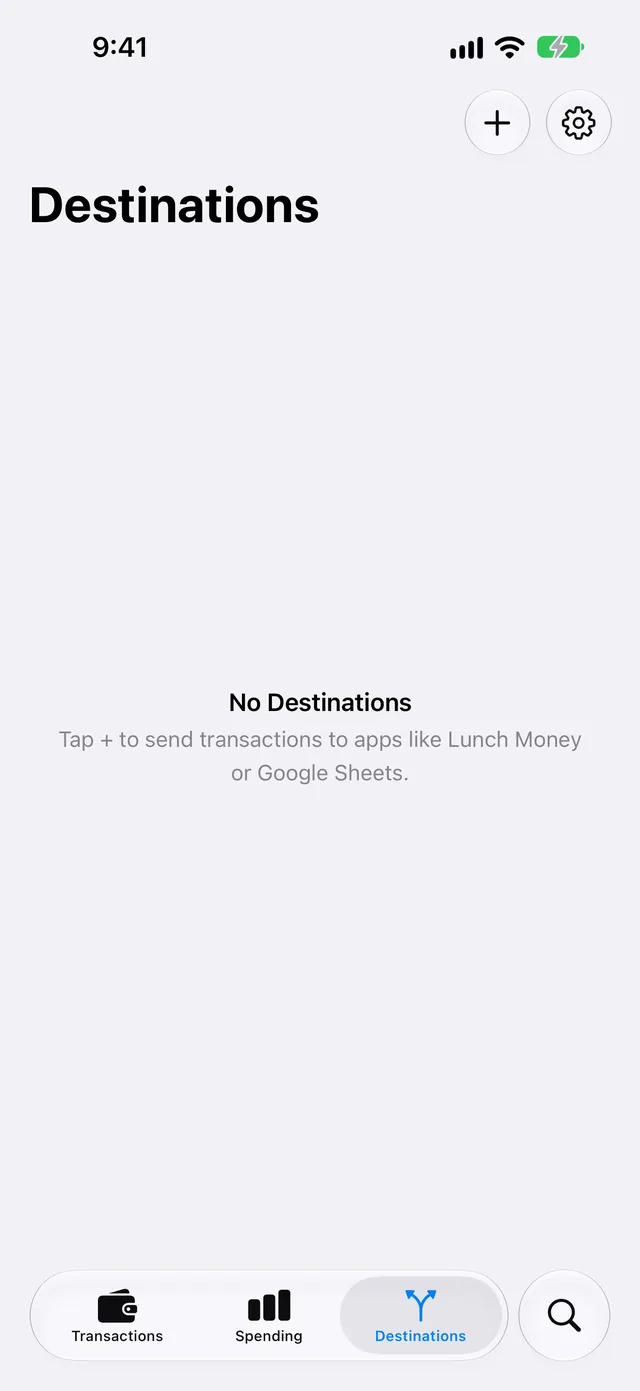
Tap Destinations.
-
Tap + at the top of the screen.
-
In the Destinations search field, type
GnuCash.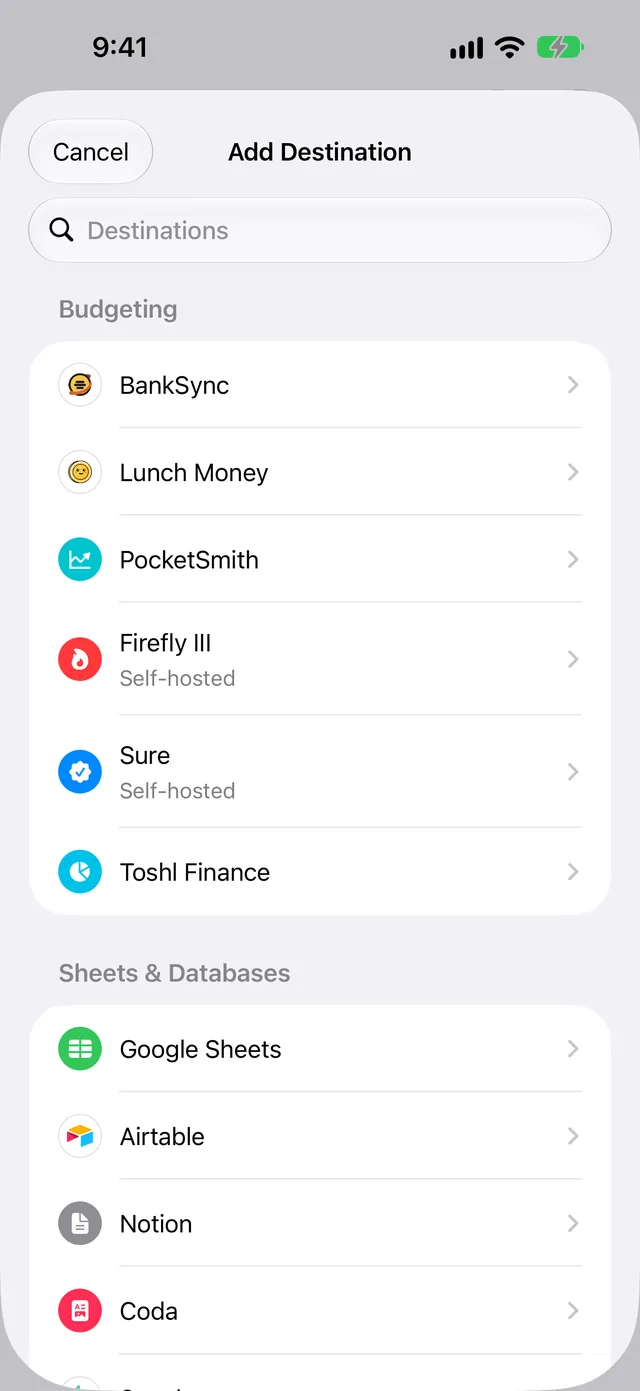
The list shows OFX File and QIF File. An OFX file has a transaction ID for each transaction. Thus, GnuCash does not import a transaction two times. A QIF file has no transaction ID.
-
Tap OFX File.
If you do not have WalletFeed Pro, WalletFeed shows the WalletFeed Pro screen. After you get WalletFeed Pro, WalletFeed shows the Files screen.
-
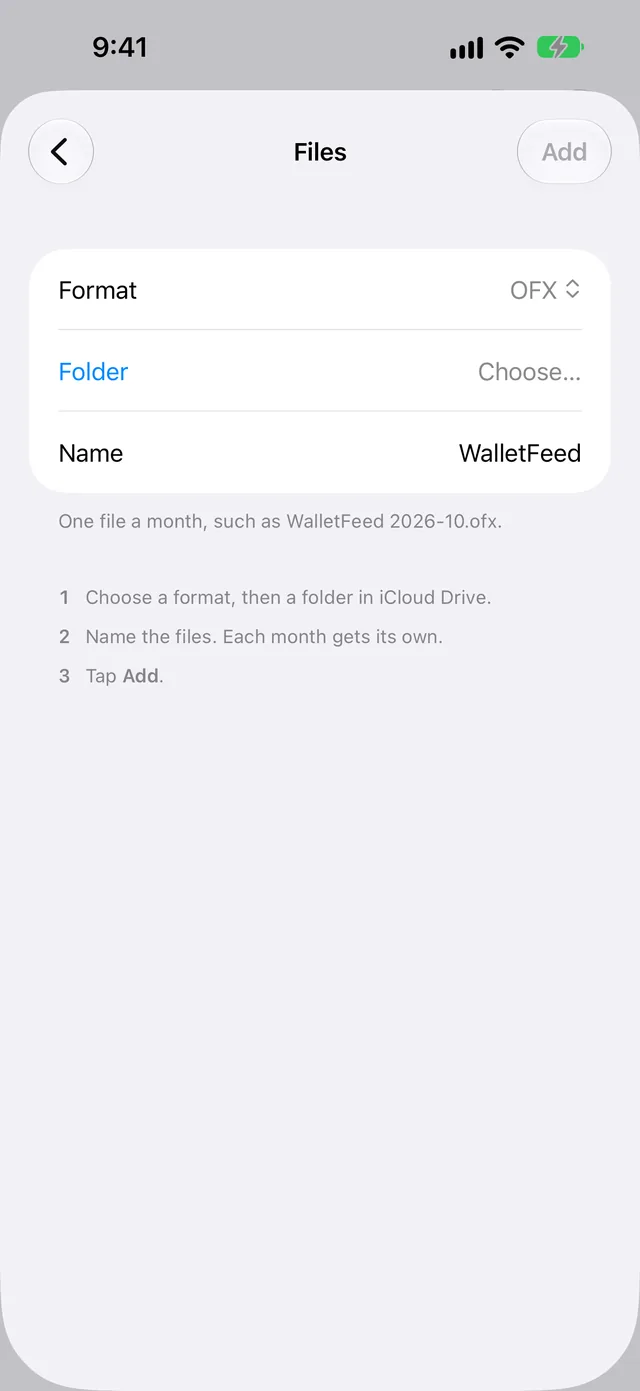
Make sure that Format is OFX.
-
Tap Folder.
-
Select a folder in iCloud Drive or in a different location.
The Folder row shows the name of the folder. You can tap Add only after you select a folder.
-
To use a different name for the files, type the new name in Name.
Each file name is that name with the month, for example
WalletFeed 2026-10.ofx. -
Tap Add.
-
When WalletFeed shows Save Transactions to Files?, tap Save.
The message gives the folder, the data that the folder receives, the accounts and the start date. If you tap Cancel, WalletFeed removes the new destination.
WalletFeed then writes one file for each month that has posted transactions, for example WalletFeed 2026-09.ofx and WalletFeed 2026-10.ofx.
Step 2: Import the file in GnuCash
-
On your computer, open GnuCash.
-
Click File › Import › Import OFX/QFX….
-
Open the folder that you selected in WalletFeed.
-
Select the file for a month, for example
WalletFeed 2026-10.ofx.To import the files of more than one month, you can select more than one file.
-
Click Import.
-
If GnuCash shows the Generic import transaction matcher window, go to step 10.
When GnuCash imports a statement for a Wallet account for the first time, GnuCash shows the Select Account window. GnuCash does not show this window again for that Wallet account.
-
In the Select Account window, select the GnuCash account for the Wallet account (Apple Card, Apple Cash or Savings).
You can also add a GnuCash account with New Account….
-
Click OK.
Then, GnuCash stores the account that you selected for this Wallet account.
-
If GnuCash shows the Select Account window again, do steps 7 and 8 again.
If the file has statements for more than one Wallet account, GnuCash shows the window for each of these accounts. Then, GnuCash shows the transactions from the file in the Generic import transaction matcher window.
-
To set the transfer account of a new transaction, double-click its row.
The transfer account is the second account of the transaction, for example
Expenses:Groceries. -
Select the transfer account.
-
Click OK.
-
Do steps 10 thru 12 again for each new transaction that has no transfer account.
-
In the Generic import transaction matcher window, click OK.
Then, GnuCash adds the transactions to the GnuCash accounts that you selected.
When you import more files, GnuCash can set the transfer account of a new transaction from the accounts that you selected previously. For more information, refer to Importing Transactions from Files in the GnuCash manual.
Data that GnuCash receives
Each OFX file has one statement for each Wallet account:
- A credit card statement for Apple Card
- A checking account statement for Apple Cash
- A savings account statement for Savings.
Each transaction in the file has this data:
| Data | In the OFX file |
|---|---|
| Date | The date of the transaction in Wallet. |
| Posted date | The date that the transaction posted. GnuCash uses this date as the date of the transaction. |
| Merchant | The merchant name, or the description if Wallet has no merchant name. WalletFeed writes only the first 32 characters. |
| Amount | The amount of the transaction. Purchases have a minus sign. Payments and refunds have no minus sign. |
| Currency | The currency of the statement, for example USD. |
| Memo | The description and the card network text, if they are different from the merchant name. The amount in a different currency, if there is one. |
| Type | The type of transaction, for example a purchase, a payment or a transfer. |
| Transaction ID | The ID of the transaction in Wallet. GnuCash uses this ID to find the transactions that it imported previously. |
The file does not include the WalletFeed category or the balance of the account. You set the transfer account of each transaction in GnuCash.
WalletFeed changes curly quotes, dashes and ellipses to ASCII characters. If the file cannot contain a character, WalletFeed writes a character that is almost the same, or ?.
New and changed transactions
While WalletFeed is open, the folder receives changes in seconds. When WalletFeed is not open, iOS starts WalletFeed approximately 1 hour or less after a change in Wallet. If Background Sync is on in Settings › Sync, WalletFeed then updates the files.
If WalletFeed cannot open the folder at that time, WalletFeed writes the files when one of these occurs:
- You open WalletFeed.
- A Shortcuts automation starts WalletFeed.
- iOS starts WalletFeed while your iPhone gets power from a charger.
When a month has a change, WalletFeed writes the file of that month again. The file has all the transactions of the month. You can import the file of a month more than one time, for example the file of this month. GnuCash uses the transaction ID to find the transactions that it imported previously. GnuCash does not import these transactions again. If GnuCash previously imported all the transactions in a file, GnuCash shows a message that the file has no new transactions.
An OFX file includes a transaction only after the transaction posts. When a pending charge posts, WalletFeed adds the charge to the file with the same transaction ID. A charge that does not post, for example a declined charge, is not in the file.
A refund is a different transaction from the purchase. The amount of a refund has no minus sign.
If Wallet removes a transaction from this month or last month, WalletFeed removes the transaction from the file of that month. If GnuCash previously imported the transaction, the transaction stays in GnuCash until you delete it.
Send previous transactions
A new OFX File destination also receives previous transactions from the start date in Settings › Sync › Initial History. Initial History is All until you change it.
With Send History, WalletFeed writes the files again from a start date that you select:
- On your iPhone, open WalletFeed.
- Tap Destinations.
- Tap WalletFeed, or the name that you typed in Name.
- Tap Send History.
- Tap 30 Days, 90 Days, 1 Year or All.
- On your computer, import the files in GnuCash (refer to Step 2).
GnuCash does not import a transaction two times.
Change or remove the destination
Open the destination
- On your iPhone, open WalletFeed.
- Tap Destinations.
- Tap WalletFeed, or the name that you typed in Name.
If you change Name on this screen, the names of the files stay the same.
Send only some transactions
- Open the destination.
- Set Filter to on.
- Set Include, Minimum, Accounts, Categories or Exclude.
For more information, refer to Choose what a destination receives.
Use a different folder
- Open the destination.
- Tap Change Folder.
- Select the new folder.
After you change the folder, WalletFeed writes all the files again in the new folder. WalletFeed uses the same start date.
Stop the destination, but keep it
- Open the destination.
- Set Enabled to off.
Remove the destination
- Open the destination.
- Tap Delete.
- Tap Delete again.
The files stay in the folder. The transactions that you imported stay in GnuCash.
If there is a problem
If you cannot tap Add
You did not select a folder on the Files screen.
- Tap Folder.
- Select a folder in iCloud Drive or in a different location.
If WalletFeed shows “Couldn't open this folder.”
WalletFeed cannot get access to the folder that you selected.
- Tap Folder, or Change Folder on the screen of the destination.
- Select a different folder in iCloud Drive.
If the destination shows “Can't open the folder. Choose it again.”
WalletFeed does not have access to the folder of the destination.
- Open the destination.
- Tap Change Folder.
- Select the folder again.
WalletFeed writes the files again. GnuCash does not import a transaction two times.
If the folder has no file for a month
WalletFeed writes a file for a month only when the month has posted transactions.
-
Open the destination.
-
Tap Send Test.
Then, WalletFeed writes the file
WalletFeed Test.ofxto the folder. The file has one test transaction. This file shows that WalletFeed can write to the folder. -
Do not import
WalletFeed Test.ofxin GnuCash. -
Tap Send History.
-
Tap All.
If GnuCash does not show new transactions
WalletFeed did not write the file after the last change in Wallet, or the new charges are pending.
-
On your iPhone, open WalletFeed.
-
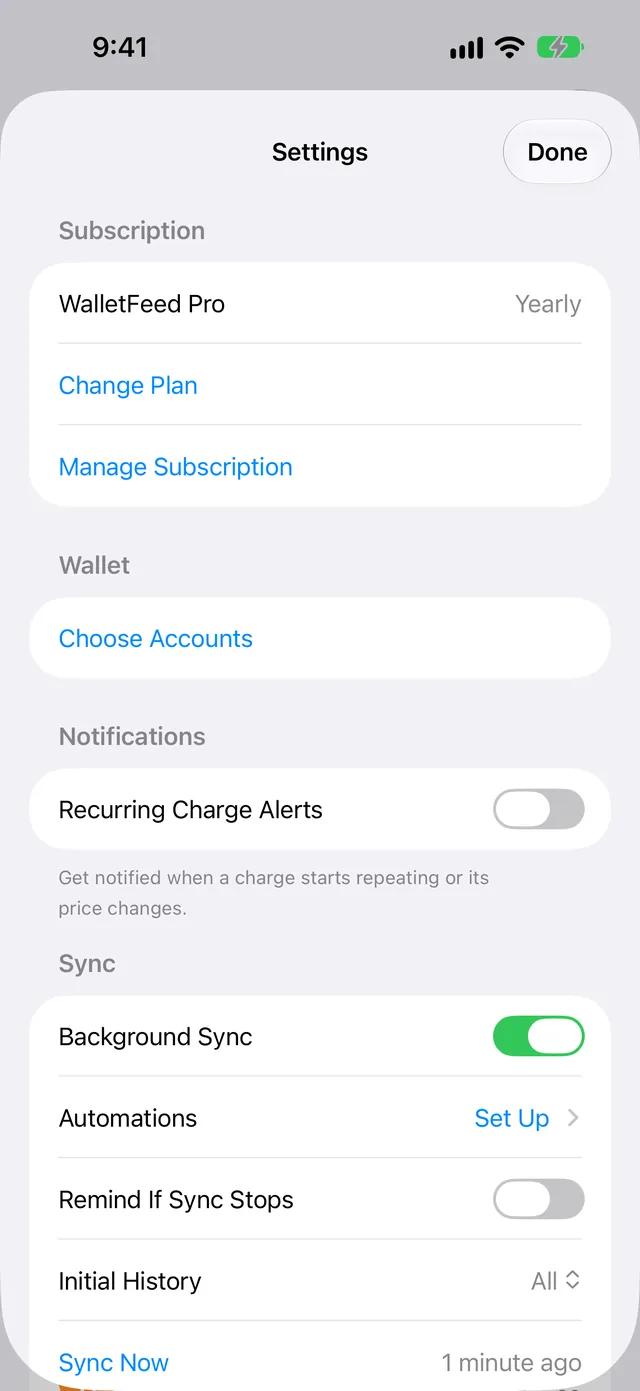
Tap Settings (the gear button) at the top of the screen.
-
Tap Sync Now.
-
On your computer, import the file of the month again in GnuCash (refer to Step 2).
If the new charges are pending, WalletFeed adds them to the file after they post.
If Destinations shows “Sync Requires Pro”
You do not have WalletFeed Pro at this time. WalletFeed keeps the destination, but WalletFeed does not write the files.
- In Destinations, tap Upgrade.
- Select a plan.
- Tap Start Free Trial, Subscribe or Buy Lifetime.
Related
Updated October 30, 2026