 WalletFeed
Troubleshooting
WalletFeed shows a message when it cannot read Wallet or send transactions to a destination.
Correct problems with Wallet and Apple Intelligence
If WalletFeed does not show your cards
WalletFeed shows only the Wallet accounts that you let it read. It can read only Apple Card, Apple Cash and Savings in the US.
Until you tap Share or Don't Share on the iOS screen Share Wallet Data, Settings › Wallet shows Choose Accounts. To let WalletFeed read your accounts, do these steps:
-
In WalletFeed, tap Settings (the gear button) at the top of the screen.
-
In the Wallet section, tap Choose Accounts.
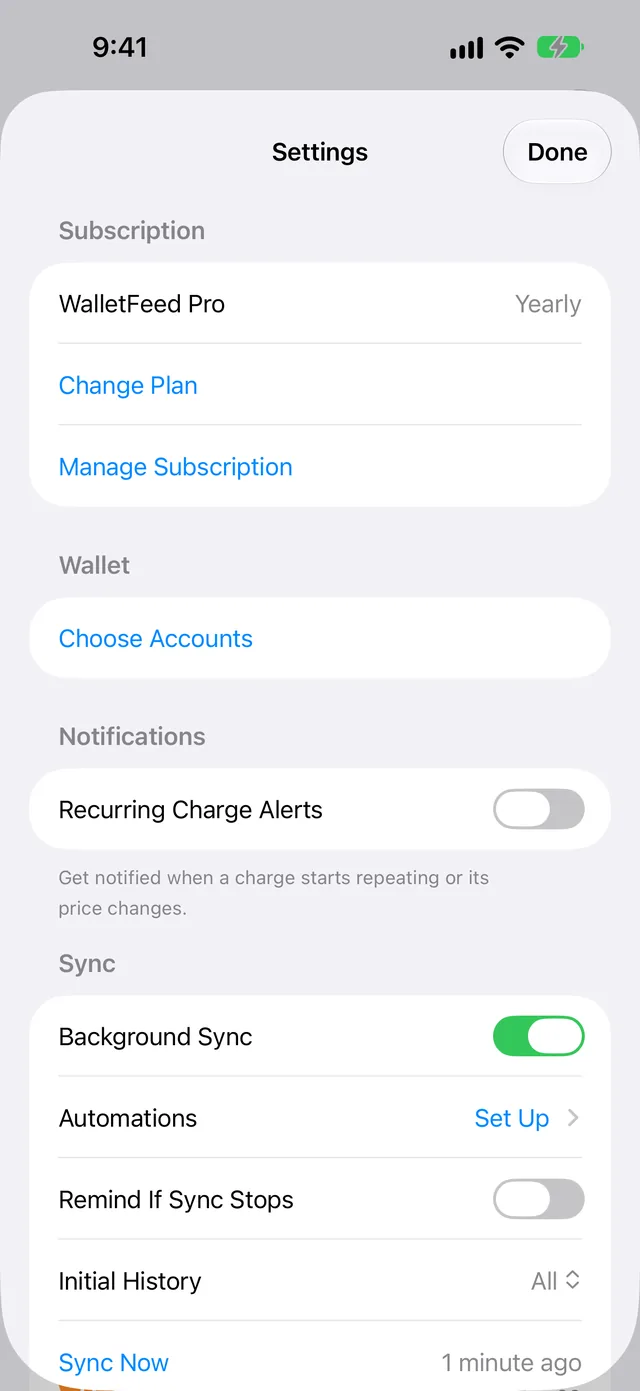
Result: iOS shows Share Wallet Data.
-
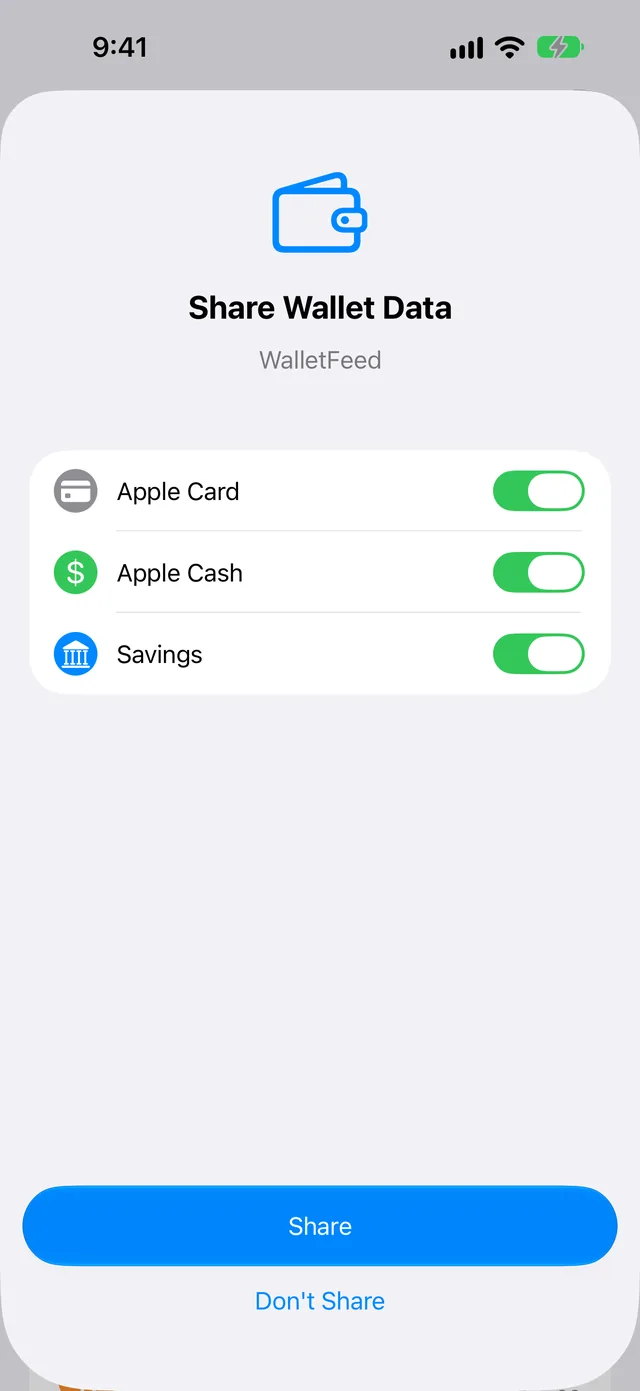
Set the switch to on for each account that you let WalletFeed read.
-
Tap Share.
After you tap Share or Don't Share, iOS does not show Share Wallet Data again. Then Settings › Wallet shows Open Settings. To change the accounts that WalletFeed can read, do these steps:
- On your iPhone, open the Settings app.
- Tap Privacy & Security › Wallet › WalletFeed.
- Select the accounts that you let WalletFeed read.
- Select the start date of each account.
- Open WalletFeed.
For more information, refer to Wallet accounts.
If WalletFeed does not show Ask Spending
WalletFeed shows Ask Spending only on an iPhone that can use Apple Intelligence, and only when Apple Intelligence is active.
-
On your iPhone, open the Settings app.
-
Tap Apple Intelligence & Siri.
-
Activate Apple Intelligence.
-
Open WalletFeed.
-
Tap Settings (the gear button) at the top of the screen.
-
In the Privacy & Security section, find Summarize Spending.
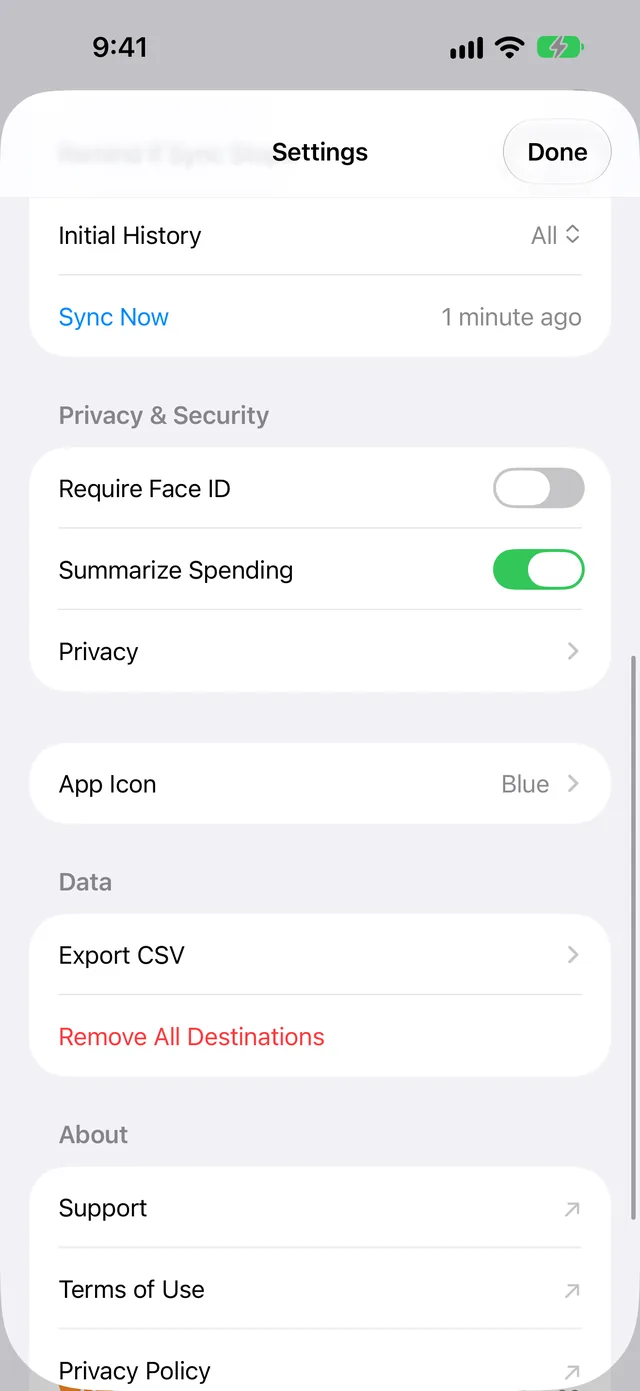
If WalletFeed shows Summarize Spending, WalletFeed can use Apple Intelligence. Spending then shows the field Ask about your spending.
If WalletFeed does not show Summarize Spending, it cannot use Apple Intelligence at this time.
When Summarize Spending is off, Spending shows Ask Spending, but Apple Intelligence does not write the Monthly Summary. The Monthly Summary then shows two facts from WalletFeed.
Without Apple Intelligence, you can use Spending and Search. Search then finds the words that you type. For more information, refer to Ask Spending.
Correct problems with destinations
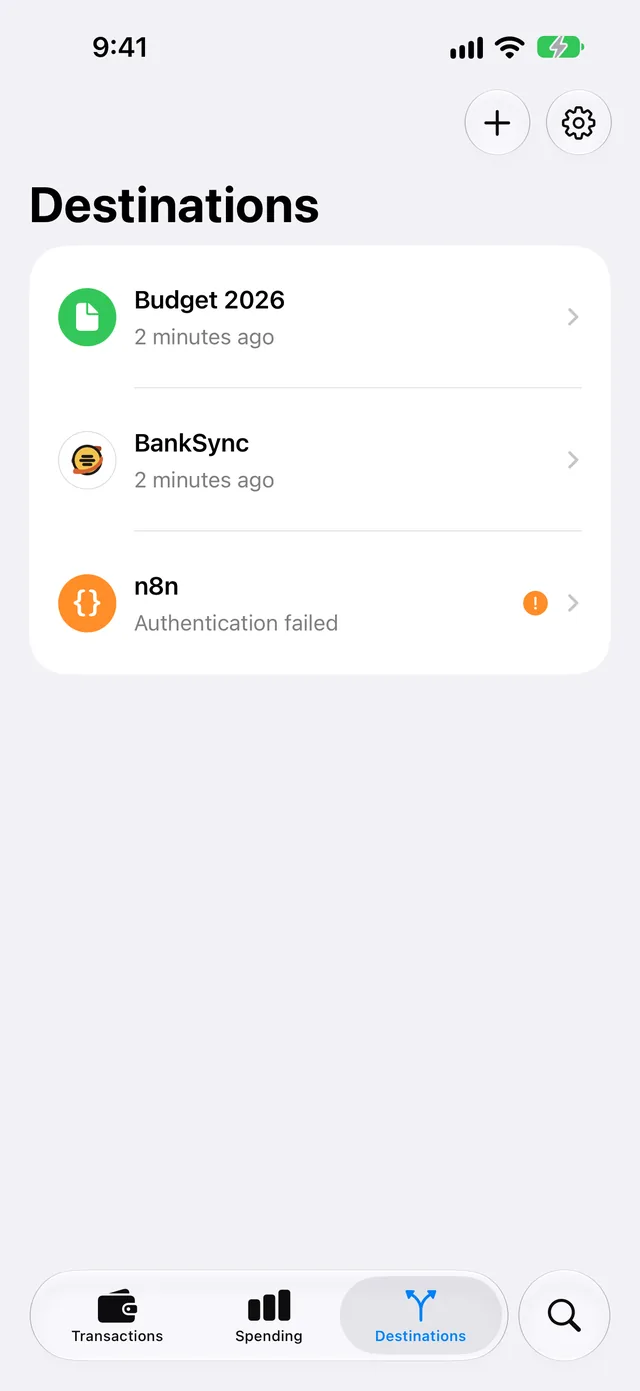
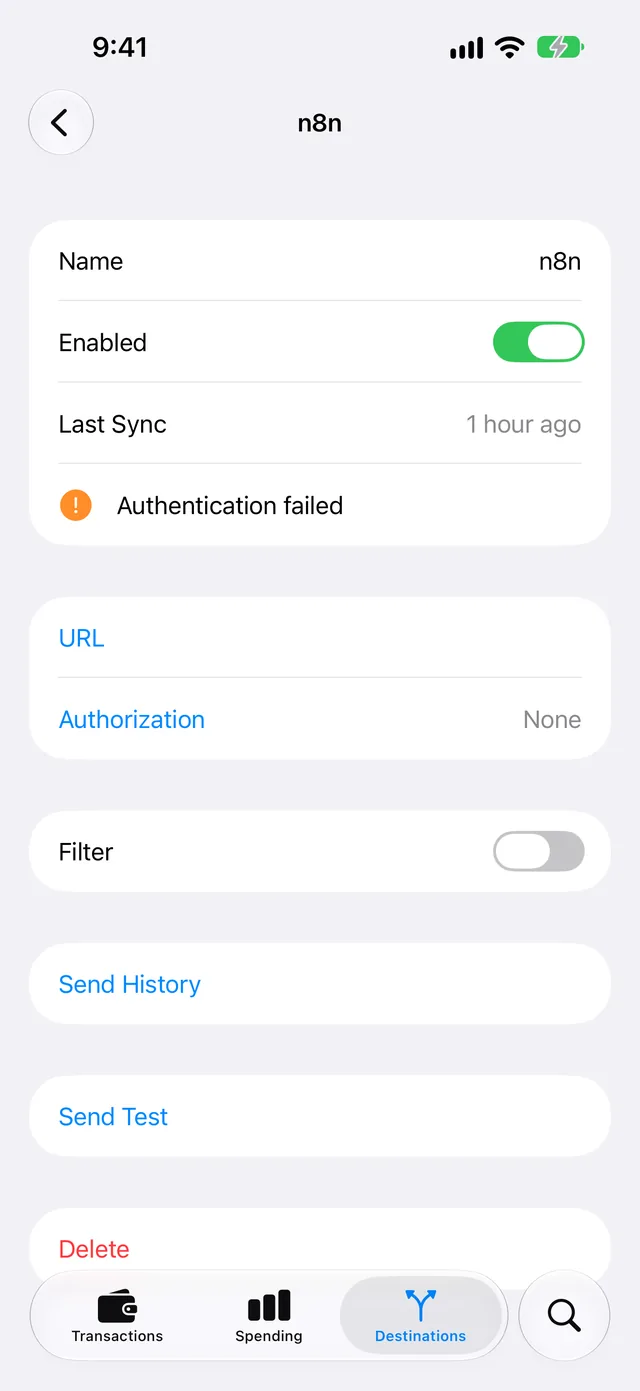
If a destination shows "Authentication failed"
The service did not let WalletFeed use the key, the token or the sign-in of the destination.
Some causes are:
- A deleted key
- An expired key
- A key that can only read data, for example a Read Only key in Sure.
If you do not select a different Expiration when you make a key in BankSync, BankSync stops the key after 90 days.
The destination screen has a button that corrects the problem:
| Destination | Button |
|---|---|
| A destination with an API key, for example Sure | Replace Key |
| A destination with a token, for example Lunch Money | Replace Token |
| A destination with a sign-in, for example Google Sheets | Sign In Again |
| Zapier or Make | Replace URL |
| Webhook | URL and Authorization |
To use a new key, token or URL, do these steps:
-
In the service, make a new key, token or URL (refer to the guide for the destination in Destinations).
-
In WalletFeed, tap Destinations.
-
Tap the destination.
-
Tap Replace Key, Replace Token or Replace URL.
-
Paste the new key, token or URL.
-
Tap Replace.
For a webhook, do steps 1, 2 and 3. Then do these steps:
- Tap URL or Authorization.
- Type the new value.
- Tap Save.
A destination with a sign-in can also show "Signed out. Sign in again in the destination's settings." To correct this problem, do these steps:
- In WalletFeed, tap Destinations.
- Tap the destination.
- Tap Sign In Again.
- Get access to the same account that you used for the destination.
It is not necessary to delete the destination. After you correct the problem, WalletFeed sends the changes that the destination did not receive.
If the destination screen shows Sending History and Try Again, tap Try Again.
If Destinations shows "Sync Requires Pro"
You do not have WalletFeed Pro at this time. WalletFeed sends transactions to destinations only with WalletFeed Pro.
-
In Destinations, tap Upgrade.
-
If you have a plan, tap Restore Purchases below the plans.
Result: If the App Store finds your plan, the WalletFeed Pro screen closes.
-
If you do not have a plan, select a plan.
-
Complete the purchase.
For the plans, refer to WalletFeed Pro.
If a destination shows "Off"
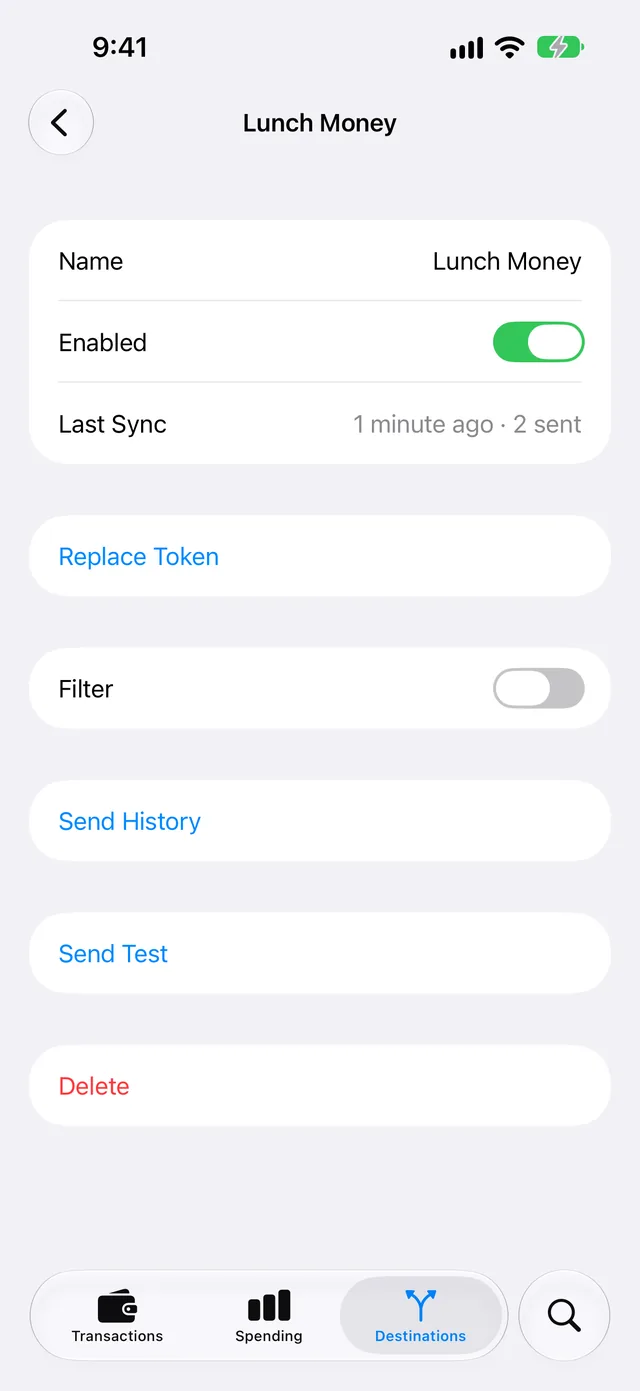
On the destination screen, Enabled is off. Thus, WalletFeed does not send transactions to the destination.
-
In Destinations, tap the destination.
-
Set Enabled to on.
If destinations receive changes only while WalletFeed is open
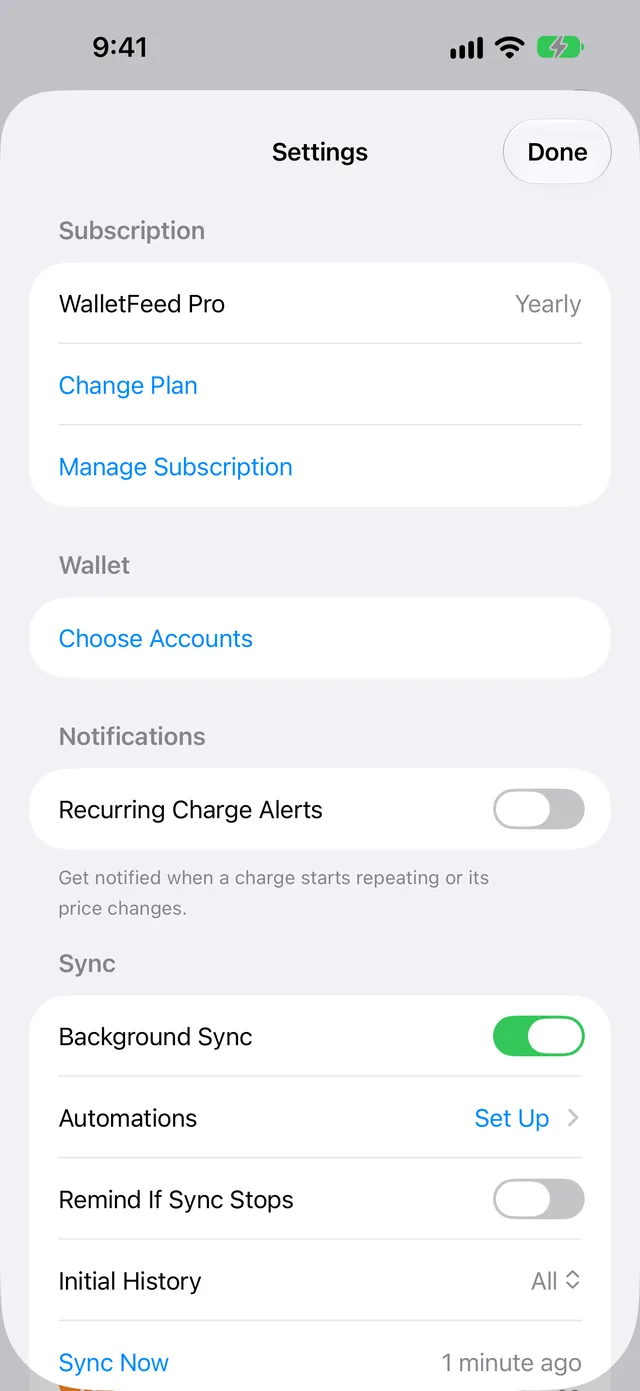
Background Sync is off, or your iPhone started again and you did not type its passcode after that.
While WalletFeed is open, destinations receive changes in seconds. When WalletFeed is not open, iOS starts WalletFeed approximately 1 hour or less after a change in Wallet.
WalletFeed shows the Sync section in Settings only with WalletFeed Pro.
-
In WalletFeed, tap Settings (the gear button) at the top of the screen.
-
In the Sync section, set Background Sync to on.
-
After your iPhone starts again, type its passcode one time.
For more information, refer to Background Sync.
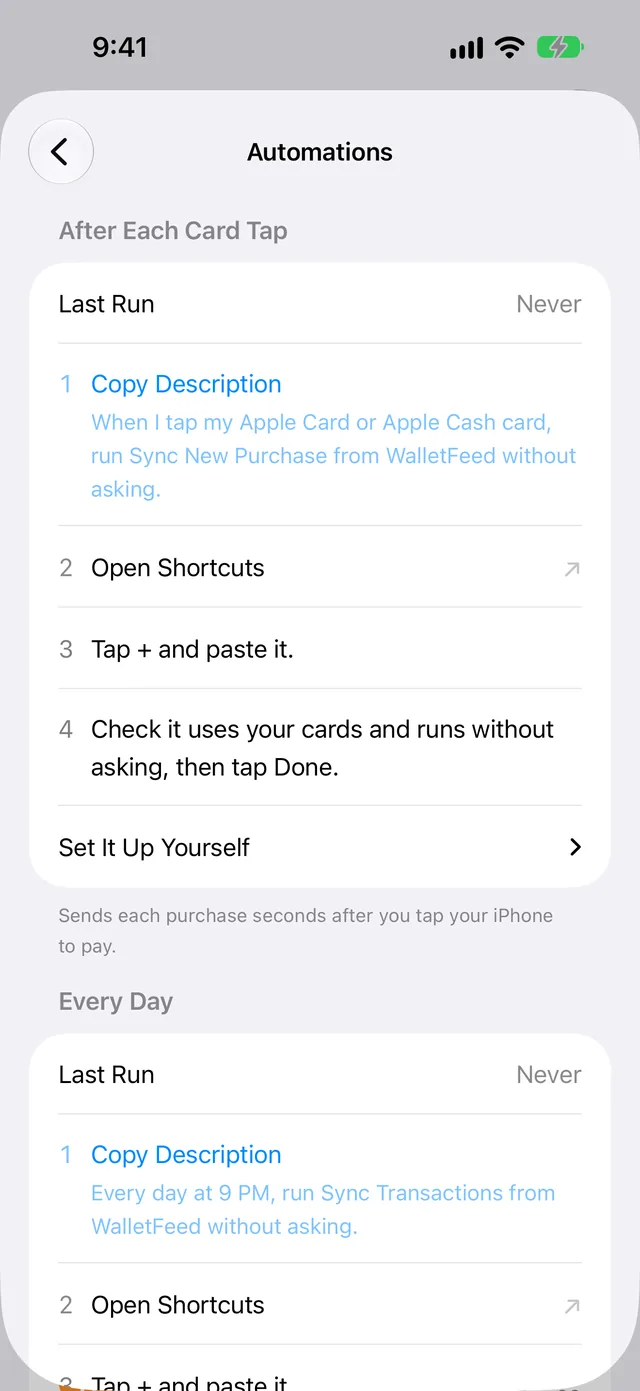
To send each purchase seconds after you tap your iPhone to make the purchase, do these steps:
-
In Settings › Sync, tap Automations.
-
In After Each Card Tap, do the steps on the screen.
If you get the notification "Sync Stopped"
For 3 days, WalletFeed did not send the changes to all your destinations correctly, and Remind If Sync Stops is on in Settings › Sync.
The notification tells you "WalletFeed hasn't synced in 3 days. Open it to catch up."
-
Open WalletFeed.
Result: WalletFeed sends the changes to your destinations.
-
Tap Destinations.
-
If a destination shows a message, find the message on this page.
If you do not let WalletFeed send notifications, Remind If Sync Stops stays off.
If a destination shows "Can't open the folder. Choose it again."
At this time, WalletFeed cannot open the folder that contains the CSV, OFX or QIF file.
- In WalletFeed, tap Destinations.
- Tap the destination.
- Tap Change Folder.
- Select the same folder again.
- If WalletFeed shows "Couldn't open this folder.", select a different folder.
After you select the folder, WalletFeed saves all the transactions of the destination in the folder again.
If a file changes only when you open WalletFeed
WalletFeed did not get access to the folder in the background. WalletFeed does not show a message for this problem.
-
Open WalletFeed.
Result: WalletFeed changes the file while WalletFeed is open.
iOS can also start WalletFeed to change the file while your iPhone gets power from a charger. An automation from Settings › Sync › Automations also changes the file.
If BankSync does not make the Apple Card table
BankSync did not make the table in approximately 30 seconds, for example because the workspace is at the table limit of its plan.
WalletFeed shows "You're signed in, but BankSync hasn't created or shared the Apple Card table." The message also gives the table limit of your plan, for example "The Free plan allows one table."
- Tap Open BankSync.
- In BankSync, delete a table that you do not use, or select a plan that has more tables.
- In WalletFeed, tap Try Again.
- If WalletFeed does not show the message again, tap Add.
If WalletFeed shows the message again, do these steps:
- Tap Sign In Again.
- In BankSync, give WalletFeed access to the workspace. Only the owner or an admin of the workspace can give this access.
- In WalletFeed, tap Add.
API keys are available only on BankSync's Standard plan or a higher plan. With one of these plans, you can tap Use an API Key Instead. For more information, refer to Send Apple Card transactions to BankSync.
Prevent copies of transactions
If Zapier, Make or a webhook receives a transaction two times
If WalletFeed stops before it sends all the changes, WalletFeed sends the same changes a second time after it starts again.
Zapier and Make do not find copies. Thus, a Zap or a scenario that adds a row for each change can add a transaction two times. Send History also sends previous transactions again.
- Open the Zap or the scenario.
- Before the step that adds a row, add a step that finds the row by its
id. - If the step finds the row, update that row.
- If the step does not find the row, add a new row.
A webhook server must update the row that has the same id as the transaction. The server can use the webhook-id header to find a request that WalletFeed sent two times. For more information, refer to Webhook format.
If your app shows each imported transaction two times
You imported the same QIF file two times, and a QIF file has no transaction ID.
- In your app, delete the second copy of each transaction.
- Import each QIF file only one time, after the end of its month.
An OFX file has an ID for each transaction. Actual, GnuCash and Moneydance use this ID and do not add a transaction two times. A CSV file has a WalletFeed ID column, but only some apps use it to find copies.
If a destination shows a transaction two times
WalletFeed finds each transaction in the destination by its ID. If WalletFeed cannot find that ID, it adds the transaction again.
WalletFeed keeps the ID in these locations:
| Destination | Location of the ID |
|---|---|
| Google Sheets | Column A, WalletFeed ID |
| Airtable, Notion and Coda | The WalletFeed ID field, property or column |
| PocketSmith | The wf: note |
| Linear | The WalletFeed ID row and the WalletFeed attachment, in the team that you selected |
In Notion, WalletFeed also cannot find a row that you moved to the archive.
- In the service, find the two copies of the transaction.
- Delete the copy that has no ID or a changed ID.
- Do not change or delete the ID of the other transactions.
Send an e-mail to customer support
If the steps on this page do not correct the problem, send an e-mail to support@walletfeed.app. In the e-mail, include these items:
- The model of your iPhone
- The version of iOS on your iPhone
- The destination that has the problem, for example Google Sheets.
Do not send API keys, tokens or information about your transactions. In WalletFeed, Settings › Support opens the support page.
Related
Updated October 30, 2026