 WalletFeed
Put Apple Card transactions in an app that uses Plaid
You can connect your Apple Card to Plaid only in an iPhone app that reads your Apple Card transactions from Wallet. If your app cannot connect to Apple Card, you can put your transactions in the app with an export file from Wallet or with WalletFeed.
Apple Card in Plaid
In its documents for software developers, Plaid gives "Apple Card" as a financial institution. Plaid gets your Apple Card transactions from an iPhone app. The app reads the transactions from Wallet on your iPhone with FinanceKit, Apple's software for financial apps. Then Plaid receives the transactions from the app.
Plaid added FinanceKit to its software kit for iPhone apps in version 6.0.0, on November 14, 2024. On March 12, 2026, Plaid gave the FinanceKit functions of version 6 the status "deprecated". In version 7.0.0, on June 9, 2026, Plaid moved FinanceKit to a new part of the kit, PlaidFinanceKit.
An iPhone with iOS 17.4 or a newer version is necessary for FinanceKit.
Thus, a website, a desktop app or an Android app cannot connect your Apple Card to Plaid. An iPhone app can connect your Apple Card only if its developer added this connection.
Apps that read your Apple Card from Wallet
These services connect to your Apple Card in their iPhone apps. Their help pages give the steps:
| App | Wallet accounts on the help page | Connection |
|---|---|---|
| Rocket Money | Apple Card | Through Plaid, in the Rocket Money app for iPhone |
| YNAB | Apple Card, Apple Cash and Savings | In the YNAB app for iPhone |
| Monarch | Apple Card, Apple Cash and Savings | In the Monarch app for iPhone |
| Copilot | Apple Card, Apple Cash and Savings | In the Copilot app for iPhone |
On September 22, 2026, the Rocket Money help center gave these conditions for the connection through Plaid:
- An iPhone with iOS 17.4 or a newer version
- The newest version of the Rocket Money app
- All Available Activity for each Wallet account that you send through Plaid, in Settings › Apps › Rocket Money › Wallet.
After the iPhone app connects, some services also show your transactions on other devices. For example, YNAB shows them in its web app and in its Android app. The transactions come from the iPhone that made the connection. The YNAB guide gives the steps for YNAB.
Apple Cash and Savings
Plaid's documents give a financial institution for Apple Card. The Rocket Money help page gives only Apple Card. The help pages of YNAB, Monarch and Copilot give Apple Card, Apple Cash and Savings.
For your Apple Cash or Savings account, refer to the help pages of your app.
Use an export file from Wallet
In Wallet, Export Transactions makes a file with the transactions of a monthly statement, or of a period between two dates. If your app can import files, you can then import the file into the app. The file does not change after Wallet makes it.
Make an export file of your Apple Card transactions gives the steps.
Send your transactions with WalletFeed
WalletFeed reads your Apple Card, Apple Cash and Savings transactions from Wallet on your iPhone. With WalletFeed Pro, WalletFeed sends the transactions to a destination. When your transactions change, WalletFeed updates the destination.
You must have these items:
- An iPhone with iOS 26 or a newer version
- WalletFeed, with access to your Wallet accounts
- WalletFeed Pro, a subscription with a 1-week free trial, or a one-time Lifetime purchase.
WalletFeed is available only in the US. WalletFeed Pro is not necessary for Export CSV, which makes one CSV file of your transactions.
WalletFeed has no account and no WalletFeed servers. Your transactions go from your iPhone directly to the folder or the service that you select.
Some of the destinations are:
- Budget apps, for example Lunch Money, PocketSmith, Toshl Finance, Firefly III or Sure
- Spreadsheets and databases, for example Google Sheets, Airtable, Notion or Coda
- CSV, OFX or QIF files for an app that imports files, for example YNAB, Quicken, Actual Budget, GnuCash or QuickBooks Online
- Automations, for example Zapier, Make or a webhook.
To add a destination:
-
On your iPhone, open WalletFeed.
-
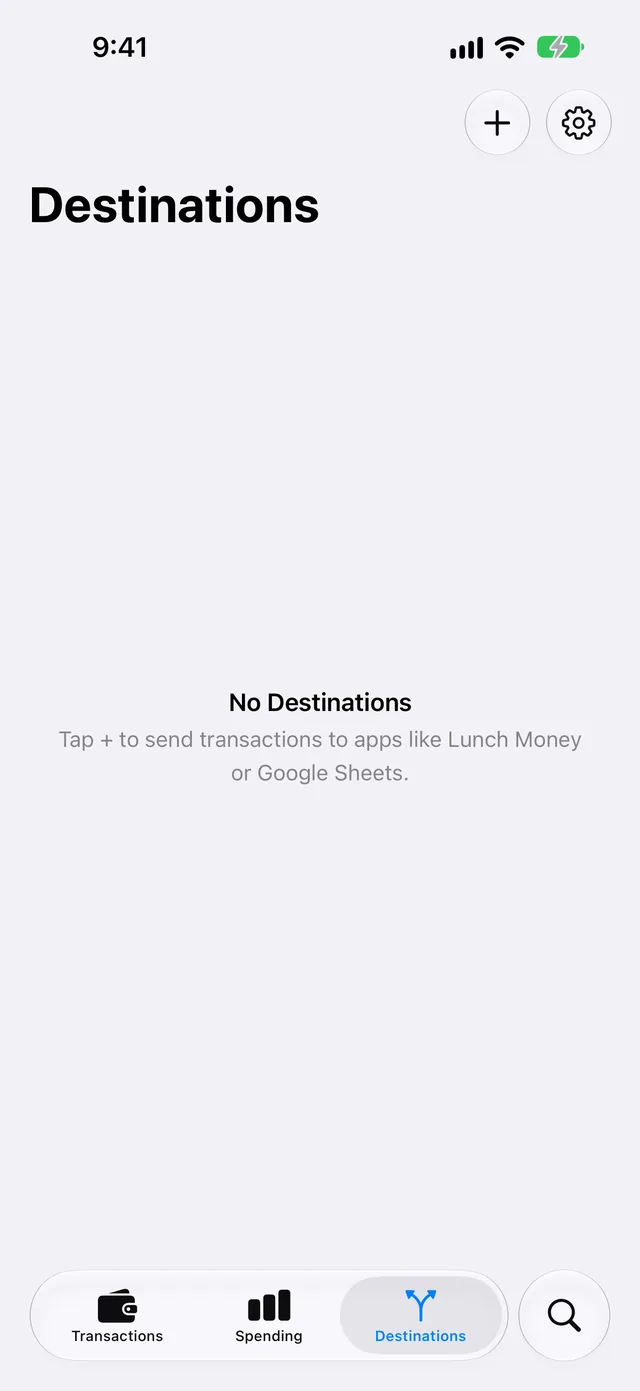
Tap Destinations.
-
Tap + at the top of the screen.
-
In the Destinations search field, type the name of the destination, for example
Lunch MoneyorOFX.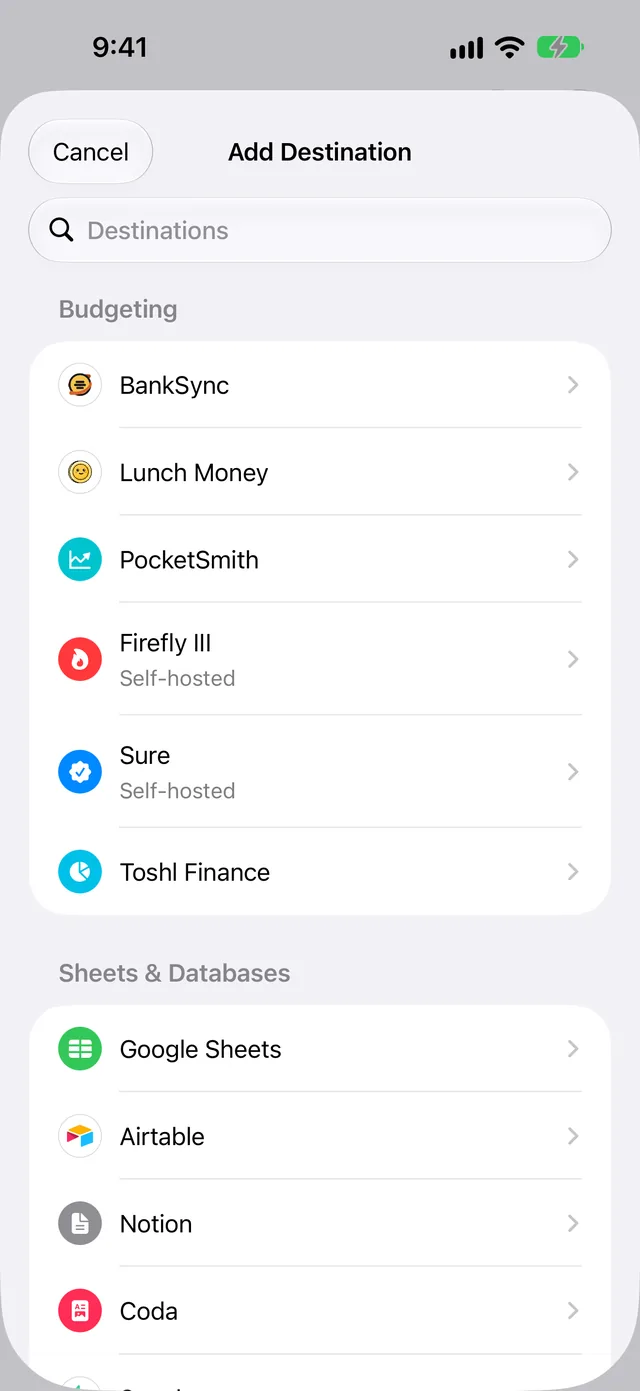
-
Tap the destination.
If you do not have WalletFeed Pro, the WalletFeed Pro screen opens. After you get WalletFeed Pro, the form for the destination opens.
-
Do the steps in the guide for the destination.
If there is a problem
If your app does not find Apple Card
The app cannot connect to Apple Card on this device, or this version of the app cannot connect. FinanceKit also does not give the Apple Card transactions of a participant in Apple Card Family.
- Open the app on your iPhone.
- Make sure that your iPhone has iOS 17.4 or a newer version.
- Update the app to the newest version.
- Find Apple Card again in the app.
- If the app does not find Apple Card, refer to the help pages of the app.
- If the app cannot connect to Apple Card, use an export file from Wallet or WalletFeed.
If WalletFeed has no destination for your app
It is possible that your app can import a CSV, OFX or QIF file from WalletFeed.
- In the help pages of your app, find the file formats that the app can import.
- If the app can import a CSV file, use Export CSV or a CSV File destination.
- If the app can import an OFX or a QIF file, add an OFX File or a QIF File destination.
Related
Updated October 31, 2026